
Objects in Auclio can carry files. For example: contracts on an account, photographs on an incident, invoices on a payment etc.
How files are handled #
Files are attached to objects, not stored as a property. There is no file data type. Instead, files are switched on for a dataset as a whole, and every object in that dataset can then carry files up to the limits you set.
Where the file content lives depends on the dataset’s connection:
- for a dataset stored in Auclio, the file content is stored by Auclio;
- for an M-Files dataset, the vault holds the file content and remains the source of truth. Auclio reads it when a user asks for it, and sends changes back.
Two separate settings decide what a user can do with files. The dataset decides what is allowed at all – how many files, how large, which types, and whether they are read-only. The widget decides which actions are offered on a given page – uploading, downloading, previewing, and deleting are each switched on separately.
Both must allow an action before a user sees it.
Adding files in bulk #
This page describes adding files to an object that already exists, or to a row as it is created. Where users need to add many files at once — and have Auclio create the objects to hold them — put an Upload widget on the page, or switch on Allow dropping files anywhere on this page in the page’s settings. Both are described on those pages.
A dataset’s file rules apply there too, and cannot be relaxed by the widget, so everything below still holds.
Turn on files for a dataset #
To allow files:
- Open Application settings.
- Open Datasets.
- Open the dataset for editing.
- Move to the File Properties step.
- Switch Allow Files on.
- Set Maximum Files – how many files one object may carry.
- Set Max Size (MB) – the largest a single file may be.
- Choose the allowed file extensions.
- Switch Read Only on if files may be viewed but never changed.
- Select Save Changes.
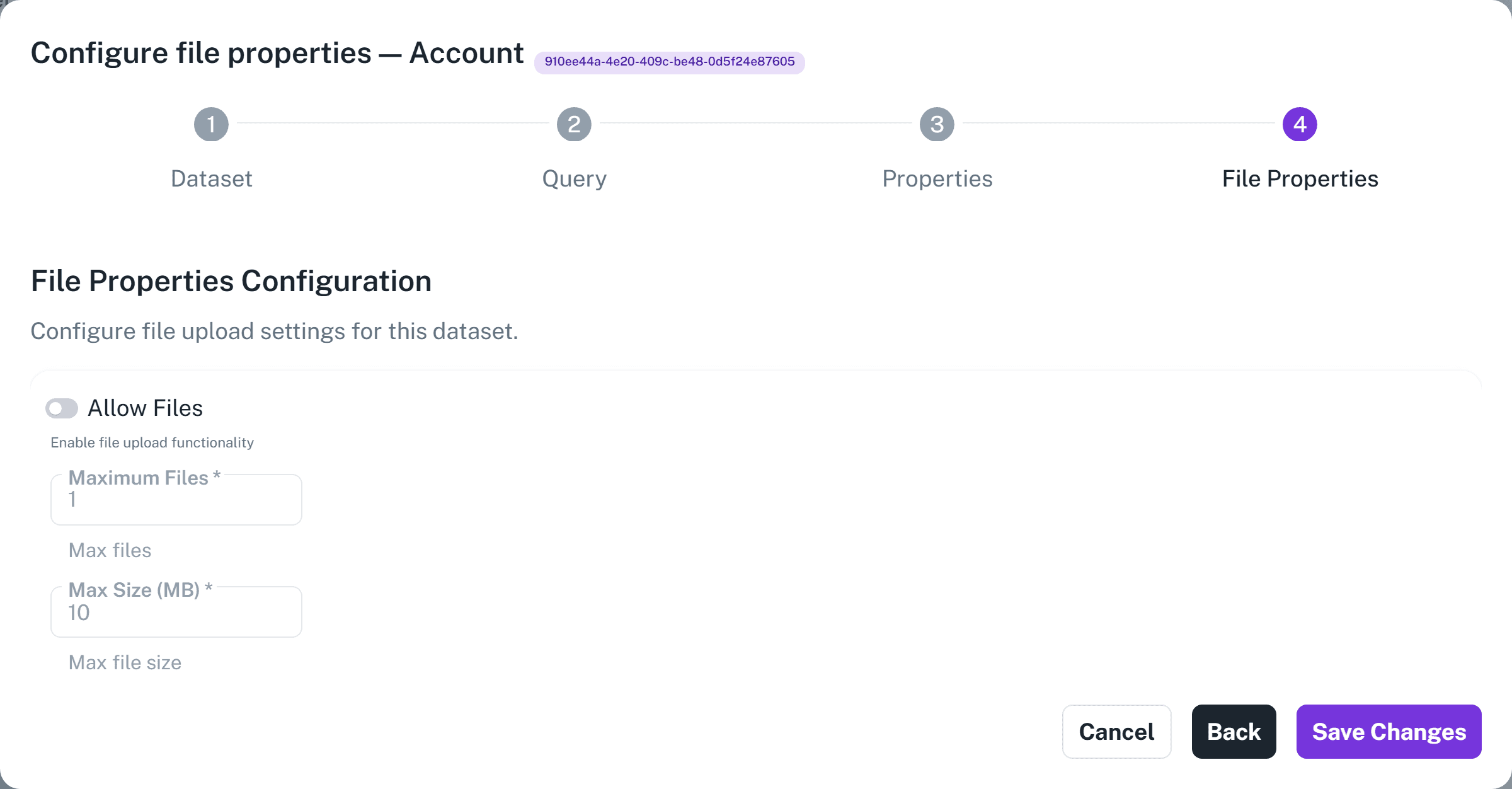
A new dataset starts at one file of up to 100 MB. Both fields have a minimum of one.
Extensions can be chosen from eight prepared categories – Documents, Images, Spreadsheets, Presentations, Archives, Audio, Video, and Code – or picked one at a time from the full list of chips. Select Add Custom Extensions to type anything the list does not offer into a Custom Extensions field, as a semicolon-separated list such as pdf;jpg;png. Leaving the list empty allows any file type.
Restrict the list where you can. It prevents mistakes, and it makes clear to users what the dataset is for.
Read Only can also be made conditional. Switching it on reveals a Files read-only conditions section: leave it empty and files are read-only on every object in the dataset; add conditions and files are locked only on the objects that match. This is how you stop files being changed after an object has been approved, while still allowing them to be added beforehand.
Enable file actions on a widget #
Allowing files on a dataset does not put them on a page. Each widget decides which file actions it offers.
To enable file actions on a Table widget:
- Open the page and enable Layout edit mode.
- Edit the Table widget.
- Move to the File Management step.
- Under Files Location, switch on Side Panel, Files Column, or both.
- Under Files Settings, switch on the actions users should have: Upload, Delete, Download, and Preview.
- Select Update and save the page layout.
Choose a location before the actions. The four action tiles stay disabled until either Side Panel or Files Column is on, because an action with nowhere to appear has no effect.
A Text Grid widget and a Form widget have a File Settings step offering the same four actions, but Side Panel is the only location it offers. There the settings are held separately for each dataset the widget draws on.
When both Upload and Files Column are on, two further fields appear: Upload button label and Upload button tooltip. Use them so the control reads as something meaningful for your process, such as Attach signed contract.
Upload a file #
To upload a file:
- Open the object, or find its row in the table.
- Select the upload control.
- Drag files onto the drop zone, or select it to browse.
- Check the list of files waiting to upload, and give each one a Title if the file name is not descriptive enough.
- Select Upload All.
Remove All clears the whole list if you have picked the wrong files.
The drop zone shows the limits that apply – how many files are allowed, the maximum size, and which extensions are accepted – so users know before they choose. Where more than five extensions are allowed, the first five are listed and the rest appear in a tooltip.
Each file shows a progress bar while it uploads, labelled Waiting…, then a percentage, and finally Done, Failed, or Cancelled. A file still in flight can be cancelled individually. Files that break a size or extension rule are rejected before the upload starts, with the reason shown.
The upload control disappears once the object has reached its maximum number of files, and does not appear at all when the object’s files are read-only or the user cannot modify the object.
When a new row is being added in a table, the control reads Add files, and the files are held until the row is saved and attached to the object at that point.
Download a file #
Select the download action on the file.
For a dataset stored in Auclio, the download starts straight away.
For an M-Files dataset, Auclio requests the file from the vault, waits for it to arrive, and then downloads it. This usually takes a few seconds, and the button shows that it is working. Auclio gives up after 25 seconds. If it does not complete, the vault or the connection is the place to look.
Preview a file #
Select the preview action to open the file in the browser without downloading it.
These formats are shown as they are: PDF, TXT, CSV, HTM, HTML, ODT, BMP, GIF, JPG, JPEG, PNG, TIFF, WEBP, and MP4. Office documents – DOC, DOCX, XLS, XLSX, PPT, and PPTX – are converted to PDF for preview. Converted previews are cached, so a document that is slow to preview the first time is fast afterwards. A first conversion has up to two minutes before the request times out.
Any other format produces an empty preview rather than an error, and nothing is offered in its place. Download the file instead.
Replace a file #
Replacing keeps the file in place and swaps its content, which preserves anything referring to it.
To replace a file:
- Select the replace action on the file.
- Choose the new file.
The replacement does not need to have the same name. Auclio replaces the file by its identity rather than by its name, so there is no need to delete the old one first. The cached preview is regenerated from the new content.
The files column offers a shortcut. Uploading a file there whose name matches one already on the object replaces that file rather than adding a second copy.
Delete a file #
Select the delete action on the file and confirm.
For an M-Files dataset, the file is removed from the vault as well. Deleting a file cannot be undone from Auclio.
Display files in a Table widget #
A Table widget can show files in two places.
Files Column shows each row’s files as chips, alongside an upload control. This suits tables where every object has one or two files and users need to reach them quickly.
Side Panel opens a panel beside the table, with Preview and Upload buttons at the top and the selected row’s files below. Uploading requires exactly one selected row. This suits tables where files are the point, and users work through them one row at a time.
Both are switched on under Files Location in the widget’s File Management step, and both respect the actions you enabled.
Display files on a details page #
On a details page, files usually belong to the Text Grid widget describing the object. Its File Settings step enables the same actions, and the widget offers a file panel for the object the page is showing.
Each file in the panel carries up to four actions – Preview File, Download File, Replace File, and Delete File – and a Show Details toggle. Select Show Details to see the file’s size, when it was created and by whom, and, where it has changed since, when it was last modified and by whom.
This arrangement – a list page with a files column for quick access, and a details page with the full file panel – covers most applications.
Work with M-Files documents #
For an M-Files dataset the vault is the system of record for file content.
- Uploading a file in Auclio adds it to the object in the vault.
- Replacing a file updates its content in the vault, and its name too when the replacement is named differently.
- Deleting a file removes it from the vault.
- Downloading fetches the current version from the vault, not a copy held by Auclio.
Because the change travels to the vault through the connection’s adapter, it is not instantaneous. Auclio shows a synchronization indicator on each file, and disables the file’s actions until it completes. A file whose synchronization has failed is marked, and the object’s other files are unaffected.
If files are not reaching the vault, check the connection status before looking anywhere else.
See Connect Auclio to M-Files for detailed instructions on the connection.
File access and permissions #
File actions follow the object’s permissions.
- Read on the object allows previewing and downloading.
- Modify on the object allows uploading, replacing, and deleting files.
There are no separate permissions for individual files. A user who can modify an object can manage all of its files.
Two further settings can remove actions regardless of permissions. A dataset marked Read Only for files prevents changes for everyone, and a widget with an action switched off does not offer it on that page. A user may therefore be able to upload on one page and not on another, by design.
Read-only users can preview and download, but never upload, replace, or delete.
Troubleshoot file upload problems #
If a user cannot upload a file, check that:
- Allow Files is switched on for the dataset;
- the object has not already reached Maximum Files;
- the file is within Max Size (MB);
- the file’s extension is in the allowed list;
- the dataset is not marked Read Only for files, and no read-only condition applies to that object;
- upload is enabled on the widget being used;
- the user has Modify permission on the object;
- the user does not have the Readonly User role.
If the upload control is missing entirely, the cause is Allow Files, Maximum Files, Read Only, the widget’s upload setting, or the Readonly User role. If the control is present but the upload fails, the file itself is usually the problem – its size or its extension – and Auclio names the rule it broke.
If an upload succeeds in Auclio but the file does not appear in M-Files, check the file’s synchronization indicator and the connection status.
If a preview does not open, the format may not be previewable. Download the file instead.
When contacting support, provide the application and dataset name, the object identifier, the file name and size, and the exact text of any error message.
