
Permissions control which users can see and manage each application, page, widget, connection, dataset, and object.
How permissions work #
Auclio permissions are built from four pieces. You wire them together so the right people see the right things.
- User groups bundle subjects. Group users so you do not have to list them one by one.
- Access lists are named permission grants. An access list holds subjects — users, groups, or both — plus four flags: Read, Modify, Delete and Create. It says that these subjects get these flags, but it does not say where. The same access list can be reused by many rules.
- Rules attach access lists to one specific thing. A rule names a resource — an application, a page, a dataset — and points access lists at it.
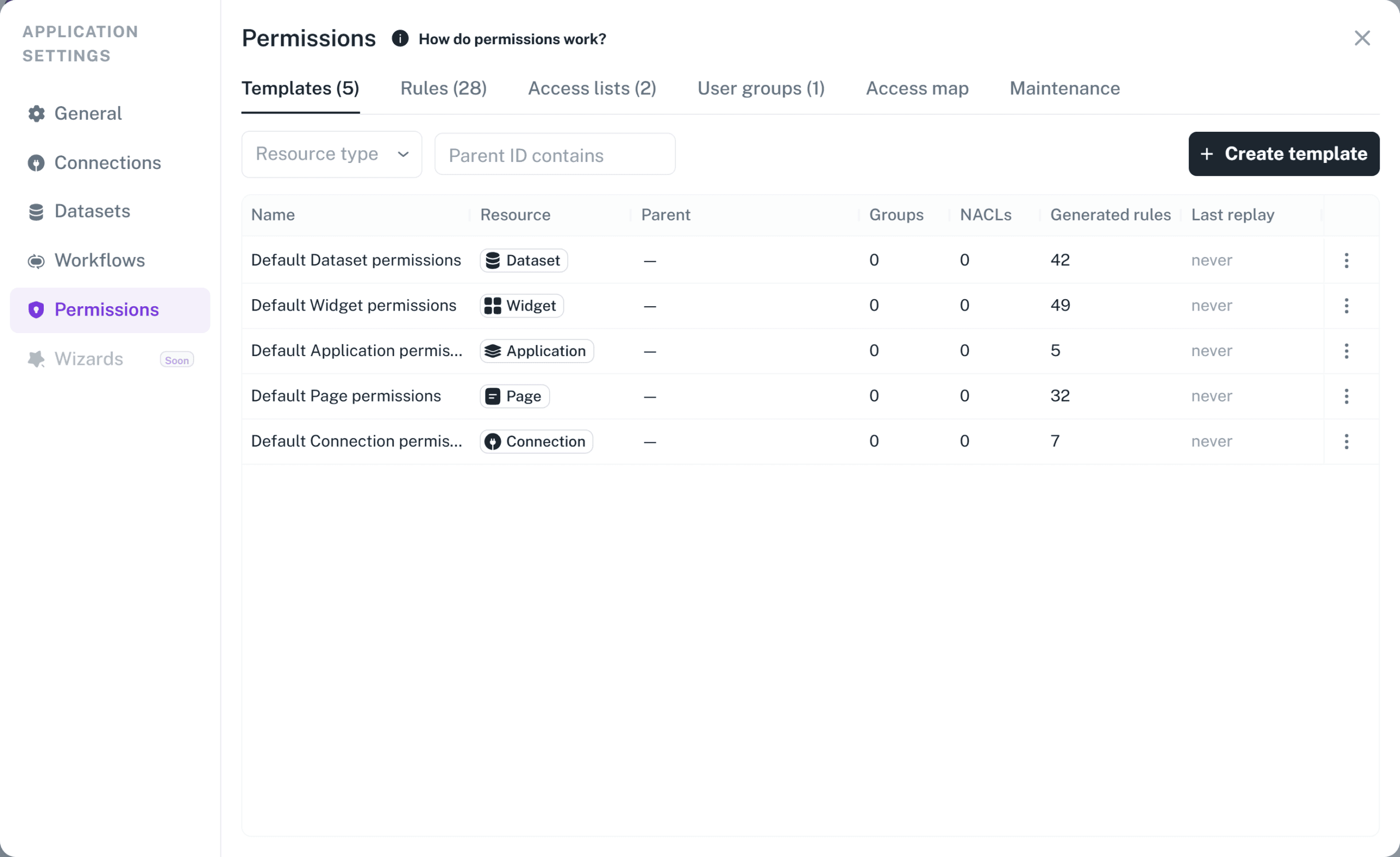
- Templates are reusable bundles. A template defines groups, access lists, and how they apply, once, and then generates a rule automatically for every new resource of that type.
Read as a sentence: users and groups go into an access list, and an access list is attached to a resource by a rule.

Every rule has two slots. Self applies to the resource itself. Children cascades to the things beneath it.
The same four pieces exist at tenant scope, where they are shared across applications, and at application scope, where they belong to one application.
The resource hierarchy #
Resources are arranged in a hierarchy, and the hierarchy is what makes inheritance work:
- an Application is the parent of its Pages and its Widgets;
- a Connection is the parent of its Datasets;
- a Dataset is the parent of its Objects.
A resource without a rule of its own inherits from its parent’s Children access lists. A page falls back to its application. A dataset falls back to its connection. An object falls back to its dataset.
Inheritance reaches one level and stops. Auclio checks the resource’s own rule, then its immediate parent’s Children grant, and looks no further. A grant on the application does not travel down to objects through the connection and dataset in between — each of those needs its own rule. This is the single most important thing to understand about the model, and the most common cause of an application that opens but shows no data.
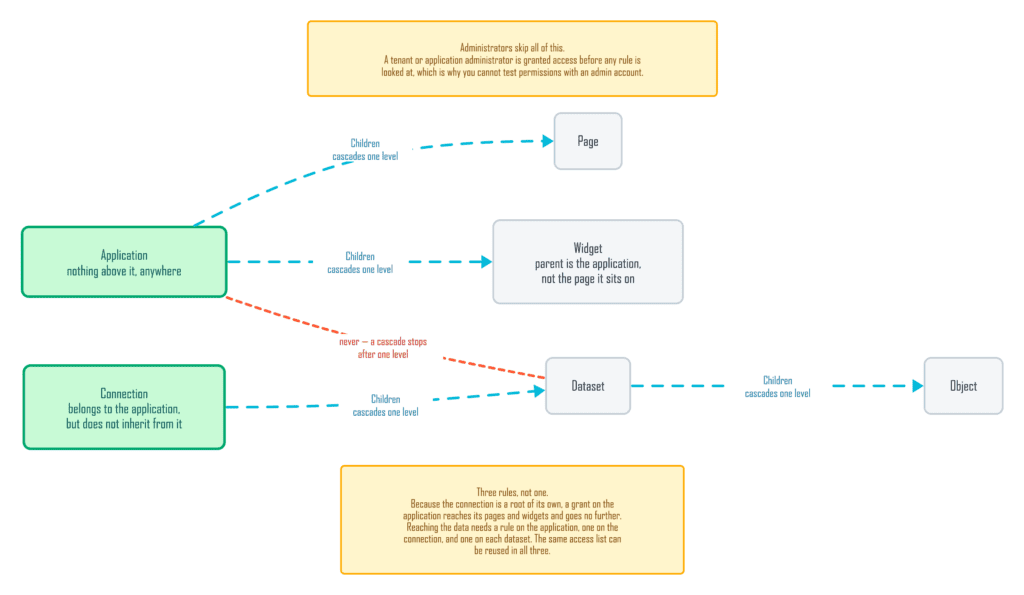
Note that a widget’s parent is the application, not the page it sits on. A widget can appear on several pages, so Auclio uses the application as its stable parent.
Inheritance is applied per user, not per resource. When a resource does have a rule of its own, the parent’s cascade still applies to any user the direct rule does not grant access to. In other words, adding a restrictive rule to a page does not hide it from people who already have access through the application. A direct rule is never a deny.
To take access away, remove it from the access lists that grant it — do not add an empty rule and expect it to block anyone.
Read, modify delete and create access #
An access list carries exactly three flags:
- Read — the subject can see the resource. Without it, the resource does not appear in lists at all.
- Modify — the subject can change the resource.
- Delete — the subject can remove the resource.
- Create — the subject can create children of the resource, such as objects in a dataset.
ThCreate only has an effect on an access list used in a rule’s Children slot: creating something is governed by the parent’s Children grant, independently of Modify. This is why the Children slot matters as much as the Self slot.
Six access lists are provided out of the box and can be used immediately:
- No access for all Users — grants nothing.
- Read access for all Users — grants Read.
- Modify access for all Users — grants Modify.
- Delete access for all Users — grants Delete.
- Create access for all Users — grants Create.
- Full access for all Users — grants Read, Modify, Delete, and Create.
Each applies to the built-in All users group, so they are a quick way to make something available to, or hidden from, everybody.
Administrators bypass permissions #
Permission rules are not evaluated for administrators.
A tenant administrator can see and change everything in the tenant. An application administrator can see and change everything inside the applications they administer, and is subject to normal permission rules everywhere else.
This has one important practical consequence: you cannot test permissions with an administrator account. An application can look complete to you and be empty for everyone else. Always confirm with a normal user account.
Tenant permissions #
Tenant-scope permissions are managed in tenant settings, by a tenant administrator.
Anything created at tenant scope is available to every application. A group defined here can be used in any application’s rules, and an access list defined here can be attached to resources anywhere.
Rules created at tenant scope apply to applications only. Rules on pages, widgets, connections, datasets, and objects must be created from inside the application that owns them.
Use tenant scope for things that are genuinely organization-wide, such as a group of department heads, or a standard “everyone can read” access list. Keep everything else inside the application it belongs to, where it is easier to find and to reason about.
Application permissions #
Application-scope permissions are managed in application settings, and cover everything inside that application.
An application rule is where most access begins. Granting a group Read on the application through the Self slot lets them open it. Granting the same group Read through the Children slot lets them see the pages and widgets inside it, without writing a rule for each one.
One rule on the application is therefore only the beginning. Because a cascade reaches one level and a dataset hangs off its connection rather than off the application, a working application usually needs at least three rules: one on the application for its pages and widgets, one on the connection for its datasets, and one on each dataset for its objects.
Plan for that from the start. The same access list can be reused in all three, so this is three rules rather than three sets of subjects to maintain.
Dataset permissions #
Datasets sit under connections, not under applications, so a dataset inherits from its connection.
A dataset rule’s Self slot controls the dataset itself — whether a user can see it exists and change its structure. Its Children slot controls the objects inside it, which is what most users are actually affected by.
To let a group read the objects in a dataset, grant Read through the dataset’s Children slot. To let them edit objects, grant Modify there as well, and to let them add new ones, grant Create. To let them delete objects, add Delete.
Remember that a widget showing a dataset needs both permissions to line up. A user needs access to the widget to see it on the page, and access to the dataset’s objects for the widget to have anything to show.
Object-level permissions #
Sometimes a whole dataset is too coarse. A user should see their own requests, or their department’s incidents, but not everyone else’s.
Object-level rules make that possible. They work exactly like other rules, but they name one object rather than a dataset.
Writing them by hand for every object is not practical, so object rules are normally generated by an object template. A template can carry a condition, and Auclio applies the template whose condition matches the object’s values when the object is created. One template can grant a requester access to their own request; another can grant a department group access to that department’s records.
Conditions are evaluated when the object is created and when the template is replayed. They are not re-evaluated automatically every time an object changes, so an object that moves between departments keeps its original rule until the template is replayed.
Object rules affect which objects appear in a list. A user with no rule granting them access to an object simply does not see it in the table.
Page and widget visibility #
There are two different mechanisms that decide whether a user sees a page, and it is worth keeping them apart.
Page visibility is a setting on the page itself, and it controls the navigation menu. Switching it off removes the page from the menu for regular users. It is a tidiness feature, not a security feature — a user who has the address can still open the page.
Permission rules decide whether the content can be reached at all. A user without Read on a page cannot open it, whether or not it appears in the menu.
Use page visibility to keep details pages out of the menu, and permission rules to protect anything confidential. For a page that must be both hidden and protected, use both.
Widgets are permissioned separately from pages, which is how one page can show an administrative block to some users and not to others. A widget with its own rule is shown to the users that rule grants access to — and, because a direct rule is never a deny, also to anyone reached by the application’s Children cascade. So a widget-level rule only narrows access where the application does not already grant it.
Users and groups in permission rules #
Access lists accept both users and groups as subjects, but naming individual users does not scale.
A rule that names five people has to be edited when any of those people change role, and there is no way to see at a glance who has access to what. A rule that names a group is edited once, in the group.
Name individual users only for genuinely individual cases, such as granting one person temporary access to one object. Use groups everywhere else.
See Manage users and groups for detailed instructions on the four group types.
How permissions interact with M-Files #
Auclio’s permission model governs what users see inside Auclio. It does not read from or write to M-Files’ own permission model.
Granting a user access to an M-Files-connected dataset in Auclio does not grant them access in M-Files. Restricting a user in M-Files does not restrict what they see in Auclio.
Two separate things must both be true for a user to see a document through Auclio:
- the connection’s adapter must be able to reach the object in the vault;
- the user must have Read permission on the Auclio dataset or object.
Plan Auclio permissions deliberately for connected datasets. Do not assume the vault’s access rules carry over, because they do not.
See Connect Auclio to M-Files for detailed instructions on the connection, and Configure permissions for detailed instructions on building rules.
Advanced: how a decision is made #
For each resource and each action, Auclio compares the subjects a user represents — themselves, plus every group they belong to — against the subjects granted that action on that resource. If there is any overlap, access is granted.
Auclio maintains an index of those subject lists so that decisions are fast and so that lists of objects can be filtered in one operation rather than object by object. The index is rebuilt as soon as a rule or an access list changes, so an edit there takes effect immediately.
The groups a user belongs to are cached separately, and that cache is where a delay can appear. Creating, editing, or deleting a group clears it at once. A change to the underlying data behind a property-based group — someone reassigning the owner of a record, for instance — is picked up by a background check that runs about every two minutes. If a change seems not to have applied, the Maintenance tab offers actions to refresh these caches directly.
Advanced: permission maintenance #
The Maintenance tab holds housekeeping actions for the permission system. In normal operation they run on their own, on a schedule or automatically as you make changes, so you rarely need them. All of them are safe to run at any time, and safe to run again.
They are grouped into four areas:
- Permission lookup cache — build the missing entries in the decision index, or clear it so it rebuilds.
- Permission coverage — generate the rules that templates should have created but have not yet.
- Group membership cache — clear or refresh the cached membership behind property-based and identity server groups.
- Storage cleanup — remove orphaned entries and merge duplicates.
Use them when a permission change has not taken effect after a few minutes, or when support asks you to.
