
Connections are created and managed per application, by an administrator.
Open connection management #
To open connection management:
- Open the relevant application.
- Select Application settings.
- Open Connections.
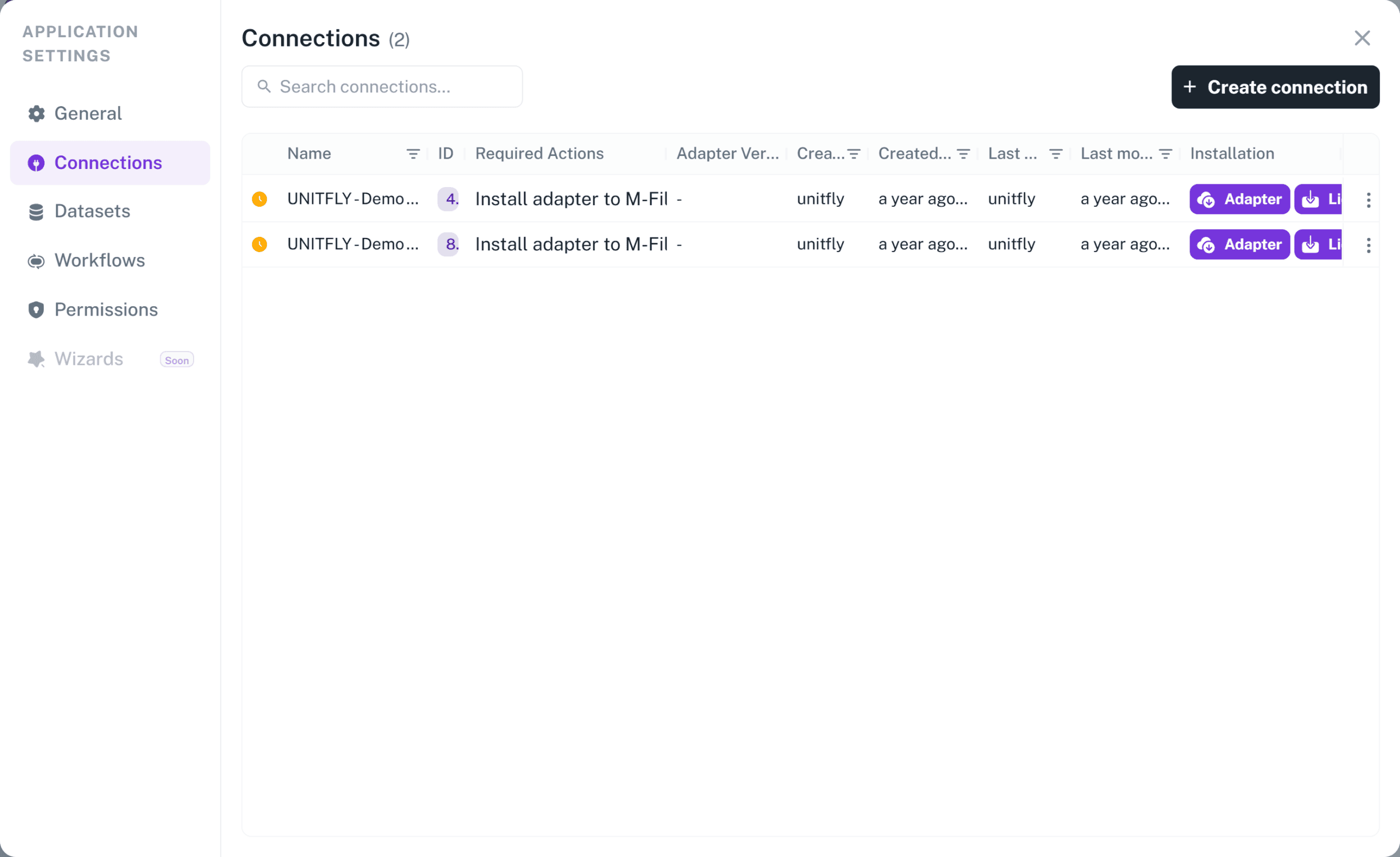
The list shows every external connection in the application. The internal connection is not listed, because it is created automatically and has nothing to configure.
Each row shows:
- a status icon;
- the connection Name and ID;
- Required Actions, telling you what, if anything, needs attention;
- Adapter Version, the version installed in the connected system;
- who created and last changed the connection, and when;
- Installation, where the adapter and its licence can be downloaded.
Create a connection #
To create a connection:
- Open Application settings.
- Open Connections.
- Select Create connection.
- Enter the connection details.
- Save the connection.
Auclio creates the connection immediately, in a pending state. It becomes usable once the connected system reports in.
Enter connection details #
The connection form is short, because Auclio does not hold credentials for the connected system.
- Connection name – required, up to 50 characters, and it may not begin with a space. Use a name that identifies the system and the environment, such as
M-Files production vault. - Connection type – required. M-Files is currently the only option. The type cannot be changed after the connection has been created.
- Description – optional, up to 500 characters. Record what the connection is for and who administers the connected system.
- Vault GUID – required for M-Files. The unique identifier of the vault you want to connect to. You can find it in M-Files Admin, in the vault’s properties.
- Vault name – filled in by Auclio once the connection is established. It cannot be edited.
There are no user name, password, or server address fields. Authentication is handled inside the connected system by the adapter you install there, and its configuration travels in a licence file rather than in Auclio.
See Connect Auclio to M-Files for detailed instructions on installing and licensing the adapter.
Check connection status #
Auclio does not have a test button. A connection reports its own health continuously, and the connections list shows the result.
A connection is in one of three states:
- Pending – the connection has been created but the connected system has not reported in yet. This is normal until the adapter is installed and licensed.
- Connected – the connected system is reporting in and the connection is working.
- Disconnected – the connected system has stopped reporting in.
The Required Actions column translates that state into the next thing to do. It shows, in order of priority:
- License invalid or expired. Renew adapter license.
- License expiring on {date}. Renew adapter license. – shown within 15 days of expiry.
- Update adapter to v{latestVersion}. – the installed adapter is behind the latest release.
- No actions needed. – the connection is healthy.
- Check M-Files vault. – the connection was working and has stopped reporting in.
- Install adapter to M-Files vault. – the adapter has not been installed yet.
Administrators are also warned when any connection in the tenant is running an outdated adapter version.
Use a connection in a dataset #
A connection does nothing until a dataset uses it.
To use a connection in a dataset:
- Open Application settings.
- Open Datasets.
- Select Create dataset, then Blank dataset.
- Switch External connection on.
- Select the connection.
- Continue through the Query, Properties, and File Properties steps.
- Select Create.
The connection is fixed once the dataset has been created. A dataset cannot be moved between connections, so create a new dataset if you chose the wrong one.
See Create a dataset for detailed instructions on the remaining steps.
Edit a connection #
To edit a connection:
- Open Application settings.
- Open Connections.
- Select the three-dot menu on the connection.
- Select Edit.
- Change the details.
- Save the connection.
The name and description can be changed at any time. The connection type cannot be changed, and changing the Vault GUID points the connection at a different vault, which will break every dataset built on it. Treat a change of vault as a new connection rather than an edit.
Refresh connection data #
Two different things are refreshed, on different schedules.
The structure of the connected system — its object types, classes, metadata properties, and value lists — is synchronized automatically every few hours and whenever the adapter starts. You do not trigger this yourself. It is what keeps the pickers in the dataset dialog up to date when someone changes the vault.
The objects in a dataset are refreshed per dataset rather than per connection. A refresh runs when a dataset is created or changed, once a day if Dataset daily refresh is switched on, and on demand. Open the dataset’s View refresh history to see past runs and their results.
Select View refresh queue on the connection’s three-dot menu to see the most recent refresh runs across all of the connection’s datasets, whether queued, running, or finished. This is the place to look when a dataset seems slow to update.
Delete a connection #
To delete a connection:
- Open Application settings.
- Open Connections.
- Select the three-dot menu on the connection.
- Select Delete.
- Confirm the deletion.
Delete the datasets that use the connection first. Auclio refuses to delete a connection that still has datasets, and the error names the datasets that are in the way.
Deleting a connection in Auclio does not remove the adapter from the connected system. Uninstall it there separately if it is no longer needed.
Troubleshoot connection errors #
If a connection is not working, check that:
- the Vault GUID matches the vault exactly;
- the adapter has been installed in the vault;
- the adapter’s licence file is present and has not expired;
- the licence was generated for this connection, and not for a different one;
- the connected system can reach Auclio’s message broker over an outbound connection;
- the adapter version is current.
Start with the Required Actions column. It names the most likely cause, and the six checks above are, in effect, that column expanded.
A connection that shows Pending long after the adapter was installed usually means the licence does not match the connection, so the adapter is reporting to somewhere else. A connection that changes from Connected to Disconnected usually means the connected system lost outbound network access, or the adapter was stopped.
If the connection is healthy but a dataset is empty, the problem is with the dataset’s query rather than the connection.
See Connect Auclio to M-Files for detailed instructions on the adapter, its licence, and dataset queries.
