
Objects are the individual items held in a dataset.
Understanding objects #
For example, one object is one company in an Accounts dataset, one project in a Projects dataset, or one request in a Requests dataset. An object holds a value for each property of its dataset, may carry files, and may sit in a workflow state.
Objects can be worked with in three places:
- in Manage objects, the administrative view inside application settings;
- in a Table widget on an application page, which is where most users work with them;
- in a Text Grid widget or Form widget, which show or edit one object at a time.
Which of these a person can use, and what they can do there, depends on their permissions and on how the widget is configured.
Open Manage objects #
To open the administrative view:
- Open the relevant application.
- Select Application settings.
- Open Datasets.
- Select the three-dot menu on the dataset.
- Select Manage objects.
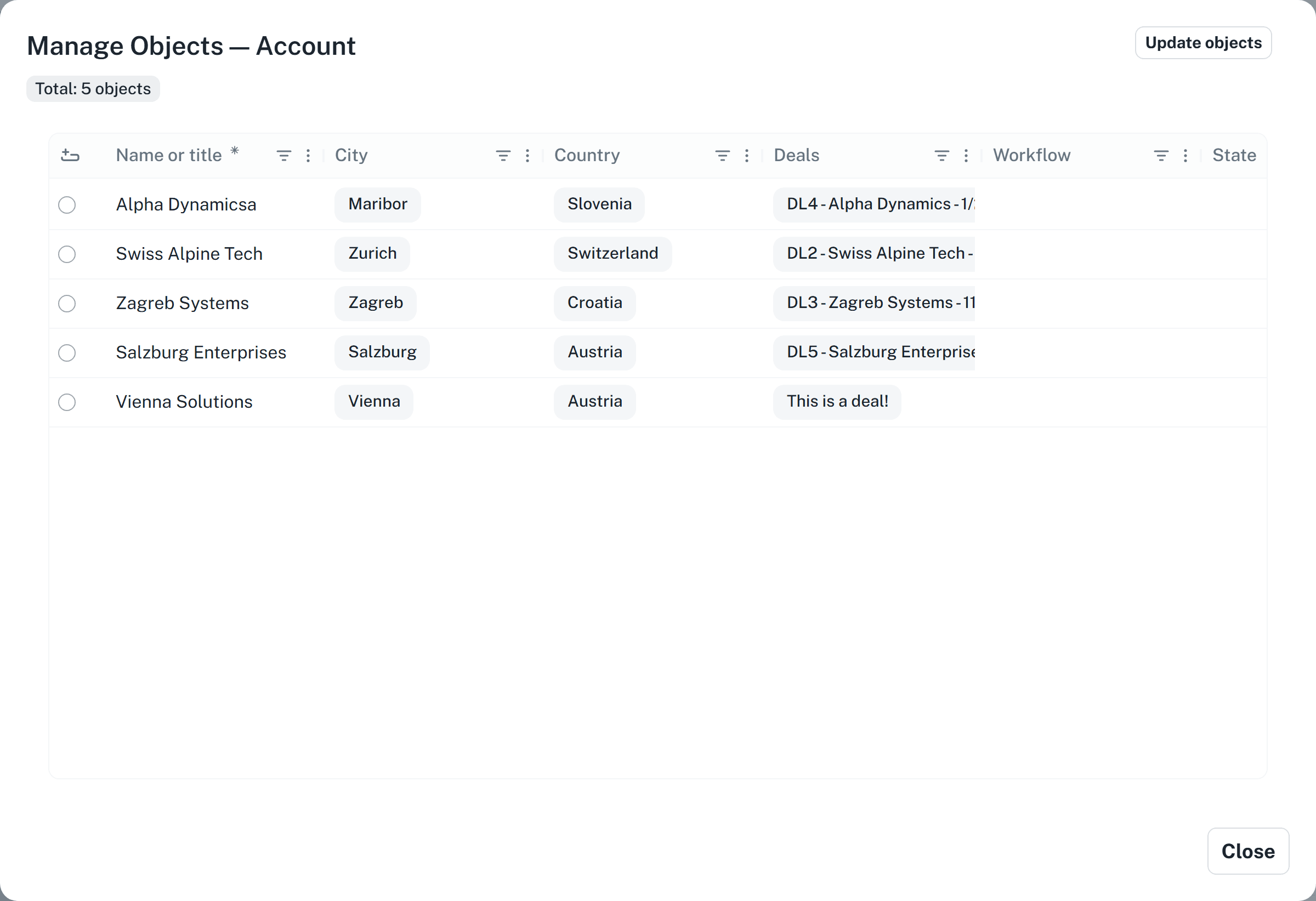
Auclio opens the dataset’s objects in a table, with the total number of objects shown at the top. This view is available to administrators regardless of what widgets exist, which makes it the right place to check data while building an application.
Create an object #
To create an object:
- Open Manage objects for the dataset, or open a page with a Table widget that allows adding.
- Select Add new row.
- Fill in the values.
- Select Submit new row.
Auclio checks every required property, every uniqueness rule, and every minimum and maximum before saving, and reports what is missing rather than saving an incomplete object.
Depending on how the table is configured, the new row appears pinned at the top of the table for you to complete, submits itself as soon as every required value is filled in, or opens in a dialog you complete before the row is added.
If the dataset has a default workflow, Auclio places the new object in the workflow’s start state.
View an object #
Select a row to see its values. Where a details page exists, opening the object there gives a fuller view, including its related objects and its files.
Dropdown values are shown as the label of the object they point at, not as an internal identifier. Where the target dataset uses dropdown colours, the value appears as a coloured chip.
Edit an object #
To edit an object:
- Open the object.
- Change the values.
- Select Save.
Read-only properties cannot be edited. This includes properties Auclio calculates, and, on connected datasets, properties the external system owns.
Closing an object with unsaved changes prompts you to discard them.
Every object also has an identifier, shown in the edit dialog with a Copy ID button. You need it occasionally when building permission rules or conditions that refer to one specific object.
Delete an object #
To delete an object:
- Select the row, or several rows.
- Open the context menu.
- Select Delete row, or Delete {n} rows when several are selected.
- Confirm the deletion.
Deleting an object deletes its values and its files. It cannot be undone.
An object that objects in a child dataset point at as their parent cannot be deleted. Auclio refuses the deletion and names the property that still references it, so delete or reassign those child objects first.
An ordinary Dropdown reference is not protected in the same way. Deleting the object a dropdown points at leaves that reference pointing at nothing. Check the relationships in a dataset before deleting from it.
Edit multiple objects #
Bulk edit applies the same value to several objects at once.
To edit multiple objects:
- Select the rows you want to change.
- Open the context menu.
- Select Bulk edit {n} rows.
- Choose which properties to change and enter the new values.
- Select Review Changes.
- Check the summary.
- Select Apply Changes.
Bulk edit works on between 2 and 10 rows at a time. Every property you change must belong to the same dataset, so you cannot mix in properties that arrived through a join.
The existing values in the selected properties are overwritten for every selected row. Auclio warns you before applying the change, and there is no undo.
Create objects through a Form widget #
A Form widget is how users create objects without ever seeing application settings.
Place a Form widget on a page, add one field per property the user should fill in, and configure the submit button. When the form is submitted, Auclio creates the object in the dataset the fields point at.
Required properties that are not on the form must have a default value, otherwise the object cannot be saved.
See Widgets for detailed instructions on configuring a Form widget.
Edit objects through a Table widget #
A Table widget can be read-only, or it can allow users to add, edit, and delete objects directly in the grid.
The three capabilities are switched on separately on the widget’s first configuration step, so a table can allow editing without allowing deletion, or allow adding without allowing either.
Users can also sort, filter, group, and rearrange columns, and can save those choices as their own preferences so the table opens the same way next time. Preferences are personal and do not change what anyone else sees.
Editing in a table respects the same rules as editing anywhere else. Read-only properties cannot be changed, required properties must have a value, and permissions decide whether the row can be modified at all.
Open an object details page #
A details page shows one object on a page of its own, which is where related objects, files, and workflow actions usually belong.
To send users there from a list, add a link to a column of the Table widget: set the link type to Page, choose the details page, and map the page’s parameter to the row’s object. Selecting the value in that column then opens the details page for that object.
See Pages for detailed instructions on building details pages.
Import objects #
Objects can be loaded in bulk from a file. This is available for datasets stored in Auclio.
To import objects:
- Open Application settings.
- Open Datasets.
- Select the three-dot menu on the dataset.
- Select Import rows.
- Upload the file. This is the Upload & map step.
- Map each column in the file to a property in the dataset. Columns you do not want can be ignored.
- Select Import rows to move to the Import step and start.
Auclio accepts CSV, TSV, plain text, and Excel files — .csv, .tsv, .txt, .xls, and .xlsx — up to 25 MB.
A CSV file may separate its columns with commas, semicolons, tabs, or vertical bars; Auclio works out which from the header row. TSV and plain-text files are read as tab-separated.
Where an Excel file holds more than one worksheet, a Sheet list appears above the mapping. Choosing a different sheet re-reads the file Auclio already holds instead of uploading it again, and replaces the mapping with that sheet’s columns. Auclio also recognises a file uploaded within the last day: uploading the same file again shows Recognised from an earlier upload — this file was not sent again. and goes straight to the mapping.
Where the dataset has a workflow, State appears as a mapping target alongside the properties, so a file can set each object’s starting state as it imports.
The import runs in the background, so you can close the dialog and carry on working. Rows that fail validation are skipped and counted rather than stopping the import, so check the result summary when it finishes and correct those rows separately. The Imports tab, beside the dataset list in Datasets, lists recent runs with their Dataset, File, Progress, Started by, and When, so you can come back to one you left.
Only one import into a dataset can be queued or running at a time. Starting another is refused with An import is already running; wait for the first to finish, or stop it, and try again. A run that ended without finishing — because the server restarted, for instance — is marked Stopped, and the rows it imported before it stopped are kept.
A file can also be used to create a dataset from scratch. Choose Import from file instead of Blank dataset when creating a dataset, and Auclio proposes a property for each column, with a data type inferred from the values it finds. Where AI is set up for your tenant, it also tidies up the proposed names and points out columns that look like references to another dataset; the inference itself works without it. Select Create & import to create the dataset and load the rows in one action.
A workbook with several worksheets can become several datasets at once, one per worksheet, linked to each other where a column in one sheet points at another sheet.
To import a workbook:
- Open Application settings and open Datasets.
- Select Create dataset, then Import a workbook.
- Upload the file.
- Under Worksheets to import, clear any sheet you do not want. Every sheet is selected to begin with.
- Select Continue with {n}.
- For each sheet, check the Dataset name, which starts as the sheet’s name, and the proposed properties.
- Select Create & import.
In each sheet’s mapping, the other sheets of the workbook are offered as targets for a relationship column, marked (this file), alongside the datasets that already exist. A sheet with no identifying column chosen is marked No identifying column, and one Auclio cannot read is marked Could not be read and is left out. The new datasets fill in the background; follow them on the Imports tab.A file can also be used to create a dataset from scratch. Choose Import from file instead of Blank dataset when creating a dataset, and Auclio proposes a property for each column, with a data type inferred from the values it finds.
Export objects #
There are three different things called export, and two of them carry object data.
Application export covers structure — datasets, pages, widgets, workflows, and permissions — and deliberately excludes the objects themselves, so an imported application starts empty. It is not a way to move data.
A dataset exports all of its objects. To export a whole dataset:
- Open Application settings and open Datasets.
- Select the three-dot menu on the dataset and select Export rows.
- Choose Excel (.xlsx) or CSV, and start the export.
The export runs in the background, so you can close the dialog and carry on. A notification brings the download link when the file is ready, and you can follow progress on the Exports tab. The file holds every object and every property of the dataset, with its column names and an External Id column, so it can be imported back into this dataset or another one. A single Excel worksheet holds at most 1,048,575 rows; for a larger dataset, choose CSV.
The Exports tab sits beside the dataset list in Application settings → Datasets. It lists the application’s recent exports, newest first, with the Dataset, the Format, the Progress — Queued, Running, Completed, Failed, or Stopped, with the number of rows written — the file Size, who it was Started by, and When. Select Stop to stop an export that is still running, or Download to fetch a finished file; the link stays here after the notification is gone. An export file is kept for seven days. After that the file is deleted and the run leaves the tab, so download anything you need before then.
A Table widget exports its own rows. Right-click the table and select Export, then choose CSV or Excel. Use this when you want exactly what you are looking at: the export contains the rows the table has loaded and the columns it displays, not the whole dataset and not properties you left off the widget, and it respects the current filters and sorting.
Where you need every property, add the missing columns to the table first, or use Manage objects, which shows the dataset’s full set.
To take a copy of object data out of Auclio, copy the values from a Table widget.
Keep this in mind before deleting a dataset, because deleting it removes its objects with no way to retrieve them.
See Applications for detailed instructions on exporting an application’s structure.
Missing references #
A missing reference is a Dropdown value that points at an object Auclio cannot find. That happens when the object has been deleted, or, on a connected dataset, when the value names an object that has not been synced into Auclio yet.
Auclio keeps the value rather than clearing it, and shows it as a red chip with a broken-link icon; hovering over it explains that the referenced item no longer exists or has not been synced yet. Most missing references resolve themselves: as soon as the target object appears, Auclio links the value to it. The rest wait for an administrator to resolve them.
The number of missing references in an application is shown next to the Missing references tab in Datasets, and on the application’s card in the application list.
To see the missing references:
- Open Application settings.
- Open Datasets.
- Select the Missing references tab.
Each row is one missing value in one object: the Dataset and Property that hold it, the Object and its Object ID, the Missing value as last known, the Reason, the Target dataset the value points into, and Missing since. Reason is Not yet synced, Deleted, or Unknown, the last for a value that has never matched any object.
Narrow the list with Dataset and Older than — 1+ day, 7+ days, or 30+ days. Select a dataset’s name to open its objects, or Open object beside an object to open it.
Resolve missing references #
Resolving points a missing value at an object that exists.
To resolve missing references:
- Select the checkbox on each row you want to resolve.
- Select Resolve ({n}).
- For each missing value, choose the New object it should point to. Values left without a choice are skipped.
- To change every reference carrying that value, not only the rows you selected, switch on All references with this value.
- Select Preview changes.
- Check the list of each Object and Property that will change, with its Current value and New value.
- Select Resolve {n} references.
Selected rows that carry the same missing value are grouped, so one choice resolves them all. Nothing is saved until the last step; select Back to change your choices. When it finishes, Auclio reports how many references were resolved, skipped, and failed.
A missing reference still unresolved after seven days is reported to every administrator in a Missing references need attention notification, which says how many values in how many datasets are affected. The check runs nightly, and each reference is reported once.
Troubleshoot missing objects #
If objects do not appear where you expect them, check in this order.
Check that:
- the widget is connected to the dataset you think it is;
- no filter is applied to the widget or left over from a saved user preference;
- the dataset actually contains objects, by opening Manage objects;
- your account has permission to read the objects, and not only the dataset;
- no object-level permission rule is limiting which objects are visible.
For a connected dataset, also check that:
- the dataset’s query conditions still match the objects in the external system;
- a refresh has run since the objects were created there;
- the connection is reporting a healthy status.
The most common cause is permissions. An administrator bypasses permission checks, so a table can look complete to you and empty to a user. Always confirm with a non-administrator account before concluding that the data is missing.
The second most common cause on connected datasets is that a refresh has not run. Open View refresh history on the dataset to see when the last one completed and whether it reported errors.
See Configure permissions and Connect Auclio to M-Files for detailed instructions on these two areas.
