
Datasets are created and managed from application settings.
Dataset management #
To access dataset management:
- Open the relevant application.
- Select Application settings.
- Open Datasets.
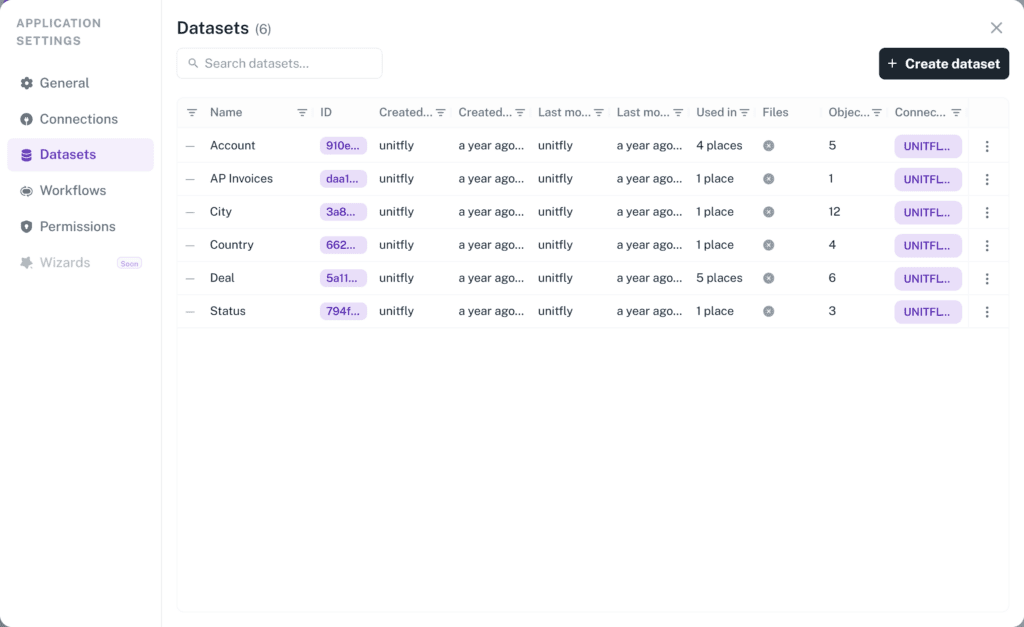
The list shows every dataset in the application, with the number of objects it holds, the connection it uses, whether it allows files, and a Used in count showing how many places depend on it. Use the search field to filter the list.
A second view, Dependency graph, draws the same information as a diagram. Select a dataset and switch between its dependencies and its usages to see how it is connected to the rest of the application.
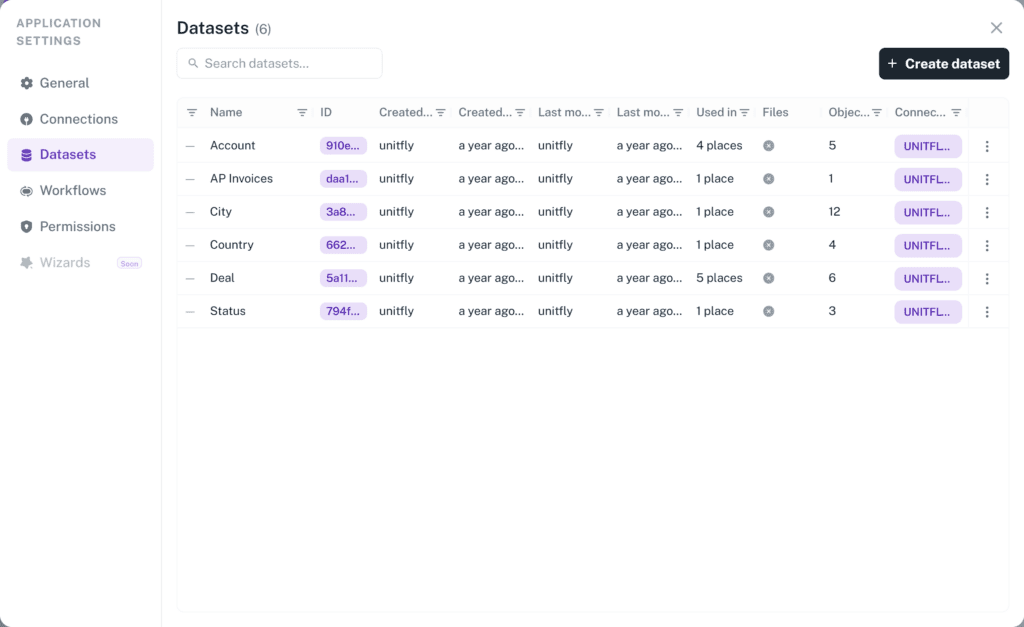
Application settings with the Datasets tab open, showing the dataset list and the Create dataset button
Create a dataset #
To create a dataset:
- Open the relevant application.
- Select Application settings.
- Open Datasets.
- Select Create dataset, then choose Blank dataset.
- Choose the dataset source.
- Enter a clear name for the dataset.
- Add the properties the objects need.
- Configure file settings, if the objects will carry files.
- Select Create.
Use a name that clearly describes the objects the dataset contains.
The dialog moves through several steps, and the final step creates the dataset. When editing an existing dataset, the same modal opens, and you can jump directly to any step.
Choose a dataset source #
The first step decides where the objects live.
Leave External connection switched off to store the objects in Auclio. This is the right choice for information that does not exist in another system yet, and it gives you complete control over the properties.
Switch External connection on to read the objects from another system, then choose the connection in the Connection field. Today the only external system is M-Files. Choosing an external connection adds a Query step, where you select which objects from that system belong in the dataset.
The source cannot be changed after the dataset has been created. If you choose wrongly, create a new dataset and delete the old one.
See Connect Auclio to M-Files for detailed instructions on building a dataset from a vault.
Name the dataset #
Enter the name in Dataset title. It may be up to 50 characters and cannot begin with a space. Use a plural noun that names the objects, such as Accounts or Requests.
Add a Description explaining what the dataset is for. This helps whoever maintains the application later, including you.
The first step also holds four optional settings:
- Parent Dataset — makes this dataset a child of another one. Auclio automatically adds a required dropdown property linking each object to its parent.
- Default workflow — the workflow every object in this dataset follows. Leave it empty if the objects do not move through states.
- Use dropdown colors — gives each object a colour, so that it appears as a coloured chip wherever it is selected in a dropdown.
- Dataset daily refresh — refreshes the dataset from its external system once a day. This applies to connected datasets only.
Add properties #
Properties define the information stored or displayed for each object.
To add properties:
- Move to the Properties step.
- Select Add Property.
- Enter the Property Name.
- Choose the Data Type.
- Tick Required, Readonly, Unique, or Name as needed.
- Configure the settings offered for that data type.
- Repeat for each property.
A dataset cannot be saved without at least one property.
Select property types #
There are eight data types available. Choose the correct type from the beginning, because a property that is already in use cannot have its type changed:
- String — text, on one line or several;
- Integer — whole numbers;
- Decimal — numbers with decimal places;
- Boolean — a yes or no value;
- Date — a calendar date;
- Time — a time of day;
- DateTime — a date and a time together;
- Dropdown — a value chosen from another dataset.
There is no separate type for relationships, choices, or files. A relationship is a Dropdown property pointing at another dataset, a list of allowed values is a small dataset referenced by a Dropdown property, and files are configured for the dataset as a whole rather than as a property.
See Manage properties for detailed instructions on each data type and its settings.
Configure required properties #
Tick Required to make a property mandatory. Auclio then refuses to save an object that leaves it empty.
Three other checkboxes sit alongside it:
- Readonly prevents users from typing a value. Use it for values Auclio or an external system calculates.
- Unique refuses to save two objects with the same value. Tick Required as well, because an empty value cannot be checked for uniqueness.
- Name marks the property Auclio uses to label an object wherever it appears — in dropdowns, in breadcrumbs, and in related lists. Ticking it also makes the property required.
Exactly one property in every dataset must be marked Name. Auclio will not let you save the dataset until one is chosen, and ticking Name on a second property clears it from the first.
Mark only genuinely necessary properties as required. Every required property is one more thing a user must supply before they can save anything at all.
Configure default values #
Each property can have a Default Value, used when an object is created without one. A default can be a fixed value, or an expression that reads another property of the same object.
A property can also have an Auto Calculated Value, an expression Auclio evaluates and stores. Use a default value when the user should be able to change it afterwards, and an auto-calculated value when Auclio should own it.
Configure dropdown properties #
A Dropdown property offers values taken from another dataset, which is how both relationships and lists of allowed values work.
To configure one:
- Set the Data Type to Dropdown.
- Select the target dataset in Dataset.
- Select which of its properties supplies the visible text in Label property.
- Tick Multiselect if more than one value may be chosen.
Label property only offers properties of the target dataset that are String and required, so make sure the target dataset has a suitable one before you start.
Two further settings narrow the list of options. Parent property creates a cascading pair, where choosing a value in one dropdown limits the choices in the next. Filter by property narrows the options based on another dropdown on the same object.
See Connect related datasets for detailed instructions on relationships between datasets.
Configure file settings #
Files are switched on for a dataset as a whole rather than added as a property.
To allow files:
- Move to the File Properties step.
- Switch Allow Files on.
- Set Maximum Files — how many files one object may carry.
- Set Max Size (MB) — the largest a single file may be.
- Choose which file extensions are allowed, or leave the list empty to allow any.
- Switch Read Only on if files may be viewed but not changed.
Leave Allow Files off if the objects do not carry documents. See Work with files for detailed instructions.
Create relationships with other datasets #
A relationship is created by adding a Dropdown property that points at another dataset, as described above.
If the target dataset does not exist yet, you do not have to leave the dialog. Select Create new dataset at the top of the Dataset list, enter a Dataset Title, and select Create. Auclio starts the new dataset off with one required text property named Name, so a title is all you have to supply. Auclio then creates the dataset and selects it for you.
Save the dataset #
Select Create. Auclio checks that the dataset has at least one property, that exactly one property is marked Name, and that every Dropdown property has a target dataset and a label property. It reports anything missing rather than saving an incomplete dataset.
Add test objects #
For a dataset stored in Auclio, the dialog offers a final Add Objects step. Add a few representative objects now. They make it far easier to tell whether a widget is configured correctly, and whether your properties are the right ones.
You can add objects for this dataset now, or skip this step and add them later by going to Datasets and selecting Manage objects.
See Manage objects for detailed instructions on creating, editing, importing, and deleting objects.
Dataset design recommendations #
When creating datasets:
- create one dataset for each distinct type of object;
- use clear and consistent names;
- avoid storing unrelated information in the same dataset;
- use relationships instead of duplicating data;
- choose data types carefully, because a property in use cannot change type;
- mark only genuinely necessary properties as required;
- mark the property a person would read first as Name;
- consider permissions before adding sensitive information;
- test the dataset with representative objects before broader use.
Connect the dataset to a widget #
A dataset becomes visible to users only when it is connected to a widget. Nothing you have built so far appears on a page yet.
To connect a dataset to a Table widget:
- Open the page the widget belongs on.
- Enable Layout edit mode.
- Select Add a widget and choose Table.
- Move to the Data Source step.
- Select the connection and then the dataset.
- Move to the Columns step and add a column for each property to show.
- Select Create.
- Save the page layout.
Datasets can also be connected to Text Grid widgets and Form widgets, item by item, through one of the page’s parameters.
See Widgets for detailed instructions on each widget type.
Edit, refresh and delete a dataset #
Every action on an existing dataset is in the three-dot menu at the end of its row in the dataset list.
Edit reopens the dialog. This is where a dataset is renamed — change Dataset title and save. It is also where properties, file settings, and the default workflow are changed. The connection and, for connected datasets, the object type cannot be changed.
Manage objects opens the dataset’s objects in a table for viewing and editing.
Import rows loads objects from a file. This is available for datasets stored in Auclio.
View refresh history shows the record of refreshes from the external system. This is available for connected datasets.
Delete removes the dataset and every object in it. It cannot be undone, and it is disabled while the dataset is in use.
Auclio does not have a duplicate command for datasets. To build a similar dataset, create a new one and add the same properties, or export the application and import it elsewhere.
Connected datasets are refreshed from their external system automatically when the dataset is created or changed, once a day if Dataset daily refresh is switched on, and on demand. Datasets stored in Auclio need no refresh, because Auclio is already the source.
Check where a dataset is used before deleting it #
The dataset list shows a Used in count for every dataset. Select it to see exactly what depends on the dataset, grouped into pages, related datasets, and child datasets.
Check this before deleting anything. Auclio blocks the deletion while the count is above zero, and the usages list tells you what to unpick first: remove the widgets that read the dataset, then the dropdown properties in other datasets that point at it, then the child datasets.
Deleting a dataset deletes its objects, and an application export does not include them, so once a dataset is deleted its contents are gone. If the objects matter, export them first from a Table widget: right-click the table and select Export.
