
Business information is rarely flat. A contact works at an account, a city belongs to a country, a task belongs to a project. This page explains the four features Auclio gives you for connecting datasets, and which one to reach for.
The four features, and which one you need #
| Feature | Where you set it | What it does | Reach for it when |
|---|---|---|---|
| Dropdown property | A property on a dataset | Links each object to an object in another dataset | You want to record which other object this one refers to. This is the basic relationship, and the only one you always need |
| Parent Dataset | A setting on the dataset itself, on the first step of the dataset dialog | Declares that every object in this dataset belongs to one object in another dataset. Auclio creates the required Dropdown property for you | A child object cannot exist on its own — a city without a country, an invoice line without an invoice |
| Parent property | A setting inside a Dropdown property | Makes two dropdowns cascade, so choosing a value in the first narrows the choices in the second | You have two dropdowns on the same object and one should filter the other, such as Country then City |
| Filter by property | A setting inside a Dropdown property | Narrows a dropdown’s options using another dropdown on the same object, without needing a parent relationship | You want one dropdown to filter another, but the datasets are not in a parent-and-child arrangement |
The short version: Dropdown property creates a link. Parent Dataset creates a link and makes it compulsory. Parent property and Filter by property do not create links at all — they change which options an existing dropdown offers.

Link one dataset to another #
A link is a property with the Dropdown data type whose target is another dataset. Selecting a value records which object was chosen; it does not copy that object’s values, so the information stays in one place.
The property goes on the dataset doing the referring. A contact refers to an account, so the property goes on Contacts.
To link one dataset to another:
- Open Application settings and open Datasets.
- Open the dataset that will hold the reference, such as
Contacts. - Move to the Properties step.
- Select Add Property.
- Enter a name such as
Account. - Set the Data Type to Dropdown.
- Select the target dataset in Dataset.
- Select the property supplying the visible text in Label property.
- Tick Multiselect if more than one object may be chosen.
- Select Save Changes.
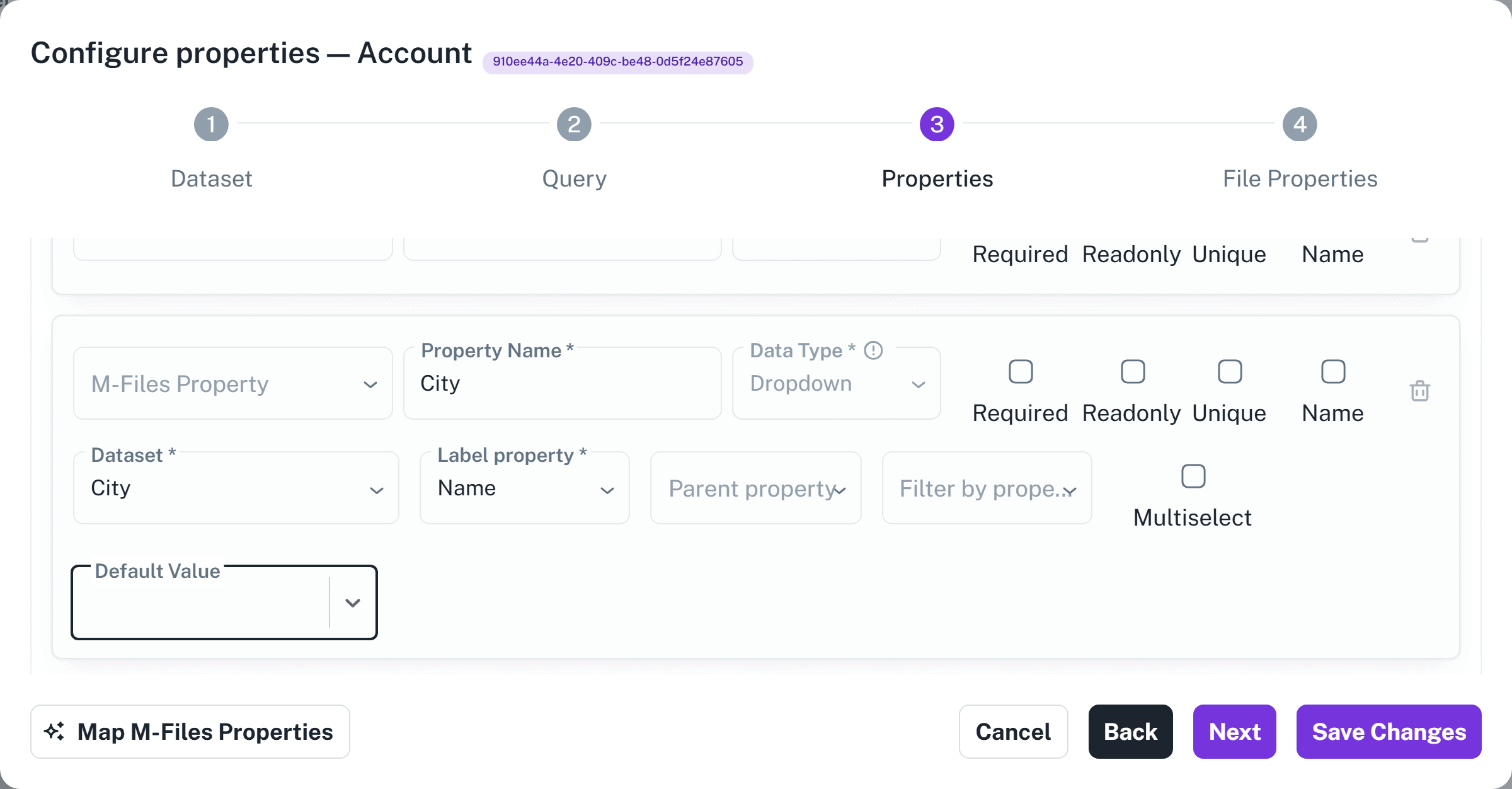
Three details about these fields:
- Dataset only offers datasets on the same connection, and never the dataset itself or its own parent dataset.
- Label property only offers properties of the target dataset that are String and marked Required. If the list is empty, the target dataset has no suitable property — go and mark its name property as Required first.
- Multiselect turns one value into a list of values. Leave it off for a contact’s single account; switch it on for something like tags.
Declare a parent dataset #
Parent Dataset is a stronger statement than a link. It says every object in this dataset belongs to exactly one object in another, and cannot sensibly exist without it.
To declare a parent:
- Open the dataset for editing.
- On the first step, select the parent in Parent Dataset.
- Select Save Changes.
Auclio then creates a Dropdown property for you, named Parent {parent dataset title}, pointing at the parent dataset and marked Required. You do not add it yourself.
Two rules follow from that, and Auclio enforces both:
- the dataset may contain only one Dropdown property referencing the parent;
- that property cannot be Multiselect, because an object has one parent, not several.
Declaring a parent has two useful consequences beyond the required property. It makes the dataset eligible as the target of a cascading dropdown, described next. And it lets a Table widget display the objects as a hierarchy, using its Tree View option.
Use Parent Dataset for genuine containment – cities in countries, lines on an invoice. Use a plain Dropdown property for an ordinary reference, even a required one.
Cascade one dropdown from another #
The goal: on an account, a user picks a Country, and the City dropdown then offers only cities in that country.
It only works if the datasets are arranged for it. Three things must be true:
- a
Countrydataset exists; - the
Citydataset has Parent Dataset set toCountry; - the dataset you are editing –
Account– has a Dropdown property pointing atCountryand one pointing atCity.
With that in place:
- Open the
Accountdataset for editing. - Move to the Properties step.
- Expand the
Citydropdown property. - In Parent property, select the
Countrydropdown property. - Select Save Changes.
Parent property only lists dropdowns on the same dataset whose target is the parent of this dropdown’s target. So while editing the City dropdown, it offers dropdowns pointing at Country, and nothing else. If the list is empty, one of the three conditions above is not met – most often the target dataset has no Parent Dataset.
At runtime, changing the value in the parent dropdown clears the child, because the previous choice may no longer be valid.
Narrow options with Filter by property #
Filter by property does a similar job with none of the parent-and-child setup. It narrows a dropdown’s options using any other Dropdown property on the same dataset, whether or not the datasets are related as parent and child.
The two dropdowns still have to have something in common for the filter to return anything. One of these has to be true:
- both dropdowns point at the same dataset, in which case the values chosen in the filter source are exactly the values the narrowed dropdown offers;
- the narrowed dropdown’s target dataset holds a Dropdown property of its own pointing at the dataset the filter source points at, in which case the options are the objects of the target dataset that reference the chosen value.
If neither is true, the narrowed dropdown offers nothing.
To use it:
- Open the dataset for editing.
- Move to the Properties step.
- Expand the dropdown you want to narrow.
- Select another dropdown in Filter by property.
- Select Save Changes.
Choose between the two like this: use Parent property when the datasets genuinely nest and you want the strict, structural version. Use Filter by property when you just want one choice to influence another and do not want to restructure your datasets to get it.
Create a related object from a dropdown #
Users do not have to leave what they are doing to add a missing value.
To create an object from a dropdown:
- Open the dropdown.
- Type the value you want, if it does not exist.
- Select Create new object, or the create option showing the text you typed.
- Fill in the new object’s properties.
- Save.
Auclio creates the object in the target dataset and selects it in the dropdown you started from.
This suits lists that grow naturally. It is less suitable for lists that must stay controlled, because anyone with edit rights can extend them. Where the list must stay fixed, restrict who can modify the target dataset – see Configure permissions.
Display related objects #
There are two directions to display, and they are built differently.
To show the object a relationship points at, put the dropdown property on the page like any other property. A Text Grid item or a Table column bound to a contact’s Account property shows that account’s name.
To show the objects that point at this one, add a Table widget bound to the other dataset and filter it by the current object. On an account details page, add a Table widget bound to Contacts and filter it on the contacts’ Account property using the page’s parameter. The table then lists only that account’s contacts.
A Table widget can also join another dataset, bringing the related object’s properties in as extra columns. Use a join for a single flat list – contacts with their account’s country alongside. Use a filtered table on a details page for a list within a page about one object.
See Table widget for detailed instructions on joins and filters.
Open related-object details #
A relationship becomes far more useful when users can follow it.
To make a related object clickable:
- Edit the Table widget or Text Grid widget showing the relationship.
- Open the settings of the column or item holding the related value.
- Add a link and set its type to Page.
- Choose the details page of the target dataset.
- Map the page’s parameter to the related object.
Doing this in both directions – from a contact to its account, and from an account’s contact list back to each contact – is what turns a set of datasets into an application people can navigate.
Avoid duplicated information #
The point of a relationship is that a fact is stored once.
For example, storing an account’s country as a text property on every contact records the country hundreds of times. When the account moves, every contact is wrong until someone fixes them all. Storing the account as a relationship records the country once, on the account, and every contact shows the current value.
Signs that information is being duplicated:
- the same value is typed into many objects;
- two datasets hold properties with the same name and the same meaning;
- correcting one fact means editing more than one object;
- a report disagrees with itself depending on which dataset it reads.
The fix is the same each time: move the fact to the dataset it describes, and point at that dataset from the others.
Troubleshooting #
A dropdown is empty. Check that the target dataset contains objects, that your account has permission to read that dataset, and that no Parent property or Filter by property is narrowing the list to nothing. Where either of those is set, the dropdown offers nothing at all until the property it depends on has a value, so the other dropdown has to be filled in first.
The target dataset I want is not offered. The Dataset list is limited to datasets on the same connection, and excludes both the dataset you are editing and its own parent dataset.
Label property offers nothing. The target dataset has no property that is both String and Required. Mark its name property as Required.
Parent property offers nothing. The target dataset has no Parent Dataset set, or this dataset has no dropdown pointing at that parent. Both are required.
A related value shows an identifier instead of a name. The label property is missing, or the object it points at has been deleted.
A related list on a details page is empty. Check that the page’s parameter is receiving the object, and that the table’s filter names the correct property.
Auclio refuses to save the dataset. If you have set a Parent Dataset, check there is exactly one Dropdown property referencing it and that it is not Multiselect.
Permissions are the most common cause of an empty dropdown. A user with no read access to the target dataset sees nothing even though the objects exist, so confirm with a non-administrator account before looking further.
