
An M-Files connection lets an Auclio application work with the objects, metadata, and documents held in an M-Files vault.
How the M-Files connection works #
The connection has two halves, and both must be in place before anything works.
In Auclio, you create a connection and give it the vault’s identifier. This tells Auclio which vault the connection is for, and gives the connection an identifier of its own.
In M-Files, an administrator installs a small application, the Auclio adapter, into the vault. The adapter is what actually reads and writes objects. It is configured entirely by a licence file, which names the Auclio connection it belongs to and how to reach Auclio.
The two halves talk to each other over a message broker. The adapter opens the connection outwards from M-Files, so nothing has to be opened up in your firewall for Auclio to reach the vault. Once the adapter starts, it reports in, and the connection in Auclio moves from Pending to Connected.
From that point:
- Auclio keeps a copy of the vault’s structure — its object types, classes, metadata properties, and value lists — refreshed automatically, so the pickers in the dataset dialog stay current.
- Objects are brought into a dataset by a query you define, and kept up to date by refreshes.
- Changes made in Auclio are sent back to the vault, which remains the source of the information.
One adapter serves one Auclio connection. Connecting a second vault means a second connection and a second adapter installation.
Connect to an M-Files vault #
Connecting a vault takes both an Auclio administrator and an M-Files administrator.
To connect to a vault:
- In M-Files Admin, open the vault’s properties and copy its GUID.
- In Auclio, open Application settings and open Connections.
- Select Create connection.
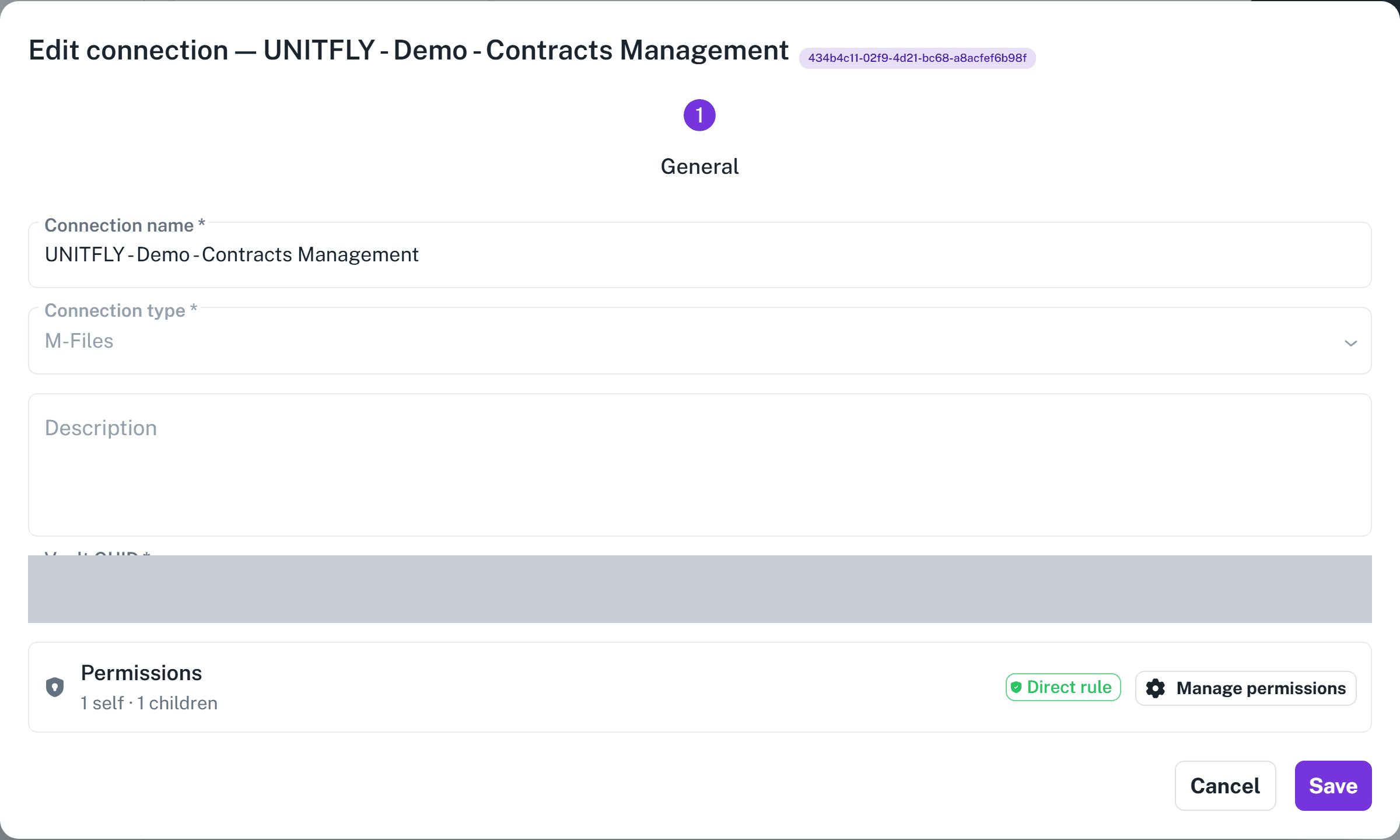
- Enter a Connection name.
- Leave Connection type set to M-Files.
- Paste the vault identifier into Vault GUID.
- Save the connection.
- Download the adapter and its licence file from the Installation column.
- Give both to your M-Files administrator to install in the vault.
- Wait for the connection status to become Connected.
Auclio fills in Vault name once the adapter reports in, which is a useful confirmation that the right vault was connected.
The licence file is specific to one connection. Installing a licence generated for a different connection makes the adapter report to the wrong place, and the connection stays Pending.
The vault’s server needs to be able to make an outbound network connection to Auclio’s message broker. If it cannot, the adapter will never report in.
Create an M-Files dataset #
An M-Files dataset is a defined slice of the vault. It is not the whole vault, and it is not a folder — it is the set of objects that match a query you write.
To create an M-Files dataset:
- Open Application settings.
- Open Datasets.
- Select Create dataset, then Blank dataset.
- Switch External connection on and select the M-Files connection.
- Enter a Dataset title and a description.
- Move to the Query step and choose which objects belong in the dataset.
- Move to the Properties step and choose which metadata to bring across.
- Move to the File Properties step and configure files.
- Select Create.
Auclio starts a refresh as soon as the dataset is created, so objects begin appearing shortly afterwards.
Select object types #
The Query step begins with two choices.
Object Type is required. It names the kind of object in the vault this dataset represents — documents, customers, projects, or any object type your vault defines. It cannot be changed after the dataset has been created, so choose carefully.
Object Class is optional. It narrows the dataset to one class within the object type. Leave it empty to include every class of that object type, or choose one to restrict the dataset and, in doing so, tell Auclio exactly which metadata properties are relevant.
Below these, you can narrow the dataset further with conditions:
- Select Add condition group.
- Select Add condition inside the group.
- Choose the M-Files Property, the Operator, and the Value.
- Add more conditions to the same group to require all of them.
- Add another group to allow objects matching either set.
Conditions inside a group are combined with AND. Groups are combined with OR. So one group with two conditions means “both must be true”, and two groups mean “either group may match”.
The available operators are Equals, Not Equal, Contains, Does Not Contain, Greater Than, Greater Than Or Equal, Less Than, Less Than Or Equal, Is Empty, and Is Not Empty. Which of them are offered depends on the property’s type.
Three vault fields can be used in conditions as well as ordinary properties: Workflow, State, and Class. These let you build a dataset such as “invoices currently awaiting approval” rather than “all invoices”.
Any property you use in a condition becomes read-only in Auclio. Auclio will not let a user edit a value that decides whether the object belongs in the dataset at all.
Select metadata properties #
The Properties step decides which of the vault’s metadata comes across into the dataset.
You do not have to build the list by hand. Select Map M-Files Properties, and Auclio proposes a property for each metadata property associated with the object type and class you chose, leaving out M-Files internal fields. Each proposal arrives with a name, a data type that matches the vault’s, and the required flag copied from the class definition.
Review the proposals and remove what the application does not need. A dataset with ten relevant properties is easier to work with than one carrying every field in the vault.
You can also add properties one at a time. Select Add Property and choose the vault property from the Add New Property list.
Some properties arrive read-only:
- properties the vault calculates automatically arrive with Readonly ticked, which you can clear;
- the built-in Created, Created by, Last modified, and Last modified by fields are always read-only;
- any property used in the dataset’s query conditions is read-only for as long as the condition uses it.
See Advanced: how M-Files data types are mapped below for the full mapping.
Use M-Files dropdown values #
Metadata properties that are based on a value list, and properties that look up another object, both become Dropdown properties in Auclio.
A dropdown needs to know which dataset supplies its options, so create a dataset for the value list as well, then point the dropdown at it:
- Create a second dataset on the same M-Files connection.
- Set its Object Type to the value list.
- Complete the dataset as usual.
- Return to the first dataset and open the dropdown property.
- Select the value list dataset in Dataset.
- Select its name property in Label property.
Auclio recognizes value lists and generates a simple structure for them: a Name property, an Owner property where the list has an owner, and a Parent property where the list is hierarchical. That is usually everything a dropdown needs.
Value list datasets are refreshed on a schedule of their own, so new values added in M-Files appear in Auclio without anyone triggering a refresh.
Switch on Use dropdown colors on the value list dataset to show each value as a coloured chip.
Use workflow states #
Workflows defined in the vault are synchronized into Auclio automatically, with their states and transitions.
Synchronized workflows are read-only. Their states, transitions, and automatic triggers are owned by M-Files and are maintained in M-Files Admin. The one thing you can change in Auclio is the colour of each state, which is used to make states easy to distinguish in tables.
To use a workflow on a dataset:
- Open the dataset for editing.
- Select the workflow in Default workflow.
- Save the dataset.
Auclio then makes two extra properties available on the dataset: Workflow and State. Add them as columns in a Table widget or as items in a Text Grid widget to show where each object stands.
Users change an object’s state by selecting a new value in the State column. The options offered are the transitions available from the object’s current state, labelled by the transition’s own name, or by the state it leads to when the transition has no name. Transitions the vault fires automatically are not offered, because they are not a user’s to choose.
See Understanding workflows for detailed instructions on workflows generally.
Display files #
Documents in the vault are shown as files attached to their Auclio object.
To enable files on an M-Files dataset:
- Open the dataset for editing.
- Move to the File Properties step.
- Switch Allow Files on.
- Set Maximum Files and Max Size (MB).
- Set the allowed file extensions, or leave the list empty to allow any.
- Save the dataset.
Then enable the file actions on the widget that shows the objects. A Table widget has a File Management step where uploading, downloading, previewing, and deleting are switched on separately, and where the files column and files sidebar are enabled.
For an M-Files dataset the vault holds the file content. Auclio streams it when a user asks for it, so a download fetches the current version from the vault rather than a copy. Previews of common formats, including Office documents converted to PDF, are generated by Auclio and shown in the browser.
See Work with files for detailed instructions on uploading, replacing, and previewing files.
Create and edit M-Files objects #
Objects created and edited in Auclio are written back to the vault.
Creating an object in an Auclio dataset creates a real object in M-Files, of the object type and class the dataset specifies. Editing a property updates the vault’s metadata. Deleting an object deletes it in the vault. Uploading a file adds it to the object there.
Three things constrain what a user can change:
- read-only properties cannot be edited in Auclio at all;
- required properties defined by the vault’s class must have a value before the object can be saved;
- an object that no longer matches the dataset’s query conditions leaves the dataset, because the query decides membership.
That last point is worth explaining to users. Changing an invoice’s state from “Awaiting approval” to “Approved” removes it from a dataset built on that condition. The object still exists — it has simply moved out of the slice this dataset describes.
Writing back to the vault happens through the adapter, so it is not instantaneous. Auclio shows a sync indicator on objects and files while a change is being applied, and the actions on a file are disabled until its sync completes.
Refresh M-Files data #
A refresh brings the dataset back into agreement with the vault. It finds objects that now match the query, updates objects whose values have changed, and removes objects that no longer match.
A refresh runs:
- when a dataset is created;
- when a dataset’s query or properties are changed;
- once a day, if Dataset daily refresh is switched on;
- on a schedule of its own, for value list datasets;
- whenever you trigger one.
To see what happened, select View refresh history on the dataset’s three-dot menu. Each run reports its status and how many objects were created, updated, deleted, unchanged, or failed. A run ends as Completed successfully, Completed with errors, Failed, Terminated, or Skipped.
A run that reports errors can be retried for just the objects that failed, rather than running the whole refresh again. A run that is taking too long can be terminated.
Refreshes for one connection are queued so they do not overwhelm the vault. Select View refresh queue on the connection to see what is waiting.
Changes made in the vault also arrive without a refresh, because the adapter reports object creations, updates, and deletions as they happen. A refresh is the safety net that catches anything missed, and the tool for the first load of a new dataset.
How M-Files permissions affect Auclio #
Auclio’s permission model is entirely separate from the vault’s.
Auclio does not read M-Files access control lists, and does not write them. Giving a user access to an Auclio application does not give them access in M-Files, and restricting them in M-Files does not restrict what they see in Auclio.
What the connection can reach in the vault is determined by the adapter’s own access there. What a user can see in Auclio is determined by Auclio’s permission rules. Both must be right:
- if the adapter cannot see an object in the vault, no Auclio user will see it;
- if an Auclio user has no read permission on the dataset, they will not see the object even though the adapter can.
Plan permissions in Auclio deliberately rather than assuming the vault’s rules carry over. An M-Files-connected dataset needs the same permission rules as any other.
See Understanding permissions for detailed instructions on the Auclio permission model.
Troubleshoot M-Files connectivity #
Start with the Required Actions column in the connections list. It names the most likely cause directly.
If the connection never leaves Pending, check that:
- the adapter has been installed in the vault;
- the licence file was generated for this connection;
- the licence file has been placed where the adapter expects it;
- the vault server can make an outbound connection to Auclio’s message broker;
- the Vault GUID in Auclio matches the vault.
If the connection was working and is now Disconnected, check that:
- the vault and its server are running;
- the adapter is still installed and enabled;
- outbound network access has not been blocked;
- the adapter licence has not expired.
If the connection is healthy but a dataset is empty, the connection is not the problem. Check that:
- the Object Type is the one you meant;
- the Object Class, if set, is not excluding everything;
- the query conditions still match objects in the vault;
- a refresh has completed, by opening View refresh history.
If objects appear but values are missing, the property was probably not included on the Properties step, or it is a property the vault does not populate for that class.
If a change made in Auclio has not reached the vault, check the sync indicator on the object, and confirm that the property is not read-only.
When contacting support, provide the connection name and identifier, the adapter version, the vault name, the dataset in question, and the result of the most recent refresh run.
Advanced: how M-Files data types are mapped #
Auclio has eight data types, and the vault has more. When properties are mapped, each vault data type becomes the closest Auclio equivalent:
- text and multi-line text become String, with multi-line switched on for the latter;
- integer becomes Integer;
- large integers and floating-point numbers become Decimal, with two decimal places by default;
- date becomes Date, time becomes Time, and timestamp becomes DateTime;
- boolean becomes Boolean;
- lookups, multi-select lookups, and anything based on a value list become Dropdown;
- anything else becomes String.
A multi-select lookup arrives with Multiselect already switched on. Dropdown properties arrive without a target dataset, because Auclio cannot know which of your datasets represents that value list — you select it yourself.
The required flag comes from the class definition in the vault, and the name flag comes from whichever property the class treats as the object’s title.
Advanced: date conditions in a query #
Conditions on date and timestamp properties can be evaluated as a function rather than as a raw value. The Options field on a condition offers:
- None — compare the raw value;
- DaysFrom() — whole days from the property’s date until now, so “less than 7” means within the last week;
- DaysTo() — whole days from now until the property’s date, so “less than 10” means within the next ten days;
- Year() — the year;
- Month() — the month number, 1 to 12;
- YearAndMonth() — year and month combined.
These make relative queries possible: contracts expiring in the next 30 days, or documents modified in the last week, without editing the dataset as time passes.
