
The Auclio interface has two levels. The tenant homepage lists the applications available to you, and each application has its own navigation, settings, and pages.
What you see after logging in #
If you have access to more than one application, or you are a tenant administrator, Auclio opens the tenant homepage.
If you are not a tenant administrator and you have access to exactly one application, Auclio opens that application directly and you never see the homepage.
Tenant homepage #
The homepage shows your organization’s logo, a welcome message with your name, and every application your account can open.
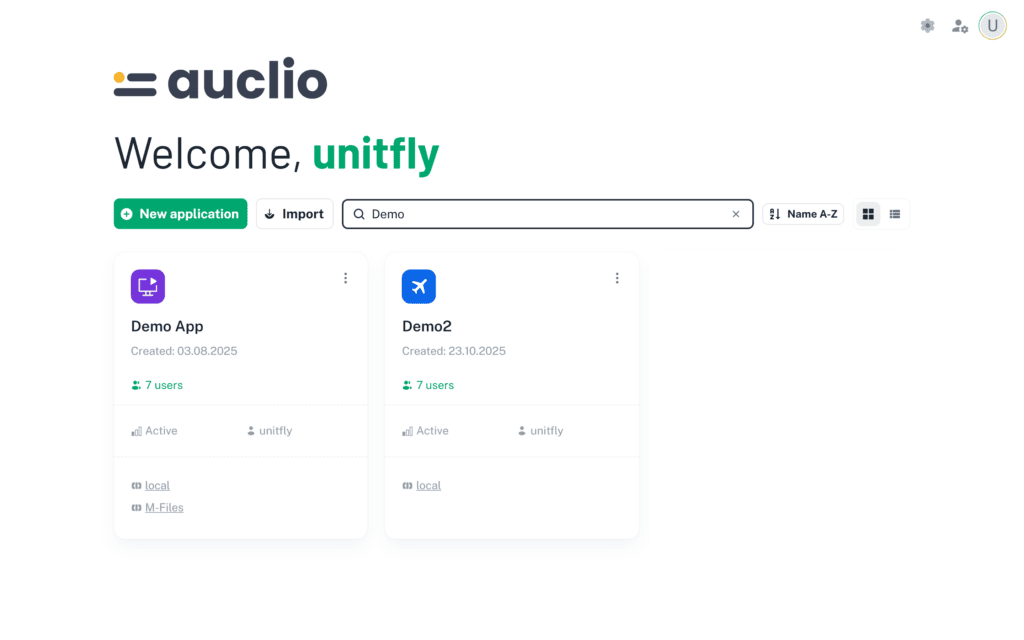
Each application is shown as a card with:
- the application name and icon;
- the application’s description, where it has one;
- the date the application was created and the name of the person who created it;
- a strip of counts — users with access, pages, datasets, and objects. Hover a number to see what it counts;
- a warning showing how many missing references the application has, when there are any. These are references to objects that were deleted or have not synced yet; resolve them under Datasets → Missing references in the application settings;
- a clickable label for each external system the application uses, such as M-Files, which lists the connections behind it;
- a badge showing unread notifications for that application.
Select the grid or list icon at the right of the toolbar to switch between the card view and a compact list view.
Open an existing application #
To open an application, select its card. Auclio opens the application’s home page.
Create a new application #
Creating applications requires tenant administrator permissions. If you have them, the New application button appears at the left of the toolbar and offers three ways to start:
- Blank application — an empty application you configure yourself.
- Create with AI — describe the application you need and let Auclio generate a first version.
- Import — bring in an application exported from another Auclio tenant.
See Applications for detailed instructions on each of these options.
Order applications on the homepage #
Applications cannot be dragged into a custom order. Instead, you control the order in two ways.
Pinning puts an application at the front of the list and adds it to your user menu. Select the three-dot menu on a card and select Pin to quick access, or Unpin to remove it. Pinning is personal, so it does not change what anyone else sees.
Sorting controls everything that is not pinned. Select the sort button in the toolbar and choose one of:
- Name A-Z
- Name Z-A
- Newest first
- Oldest first
Use the search field to filter the list by application name.
Tenant settings #
Tenant settings apply across the whole tenant rather than to one application. They are available to tenant administrators only, from the gear icon in the top-right corner of the homepage.
The settings open in a panel with three areas:
- General — the tenant name and creation date under Basic Information, and the Tier, Expires date, and counts of users, datasets, and objects against your subscription limits under Subscription Details. No value here can be edited, although the dataset and object counts each have a refresh control that recalculates them.
- Users — the list of user accounts, where administrators create users, assign roles, and synchronize accounts with the identity server.
- Permissions — tenant-wide permission templates, rules, access lists, user groups, and maintenance tools; an access map is added once you narrow the view to a single application.
See Manage users and groups and Understanding permissions for detailed instructions on these areas.
User settings #
User settings apply to your account only and follow you between applications. Open them from the icon in the top-right corner whose tooltip reads User Settings. They are available to every user.
The panel has two areas.
Appearance controls how Auclio looks:
- Dark, Contrast, RTL, and Compact display modes;
- the Nav block, where Layout switches the page navigation between Vertical, Horizontal, and Mini, and Color changes how the navigation is shaded;
- the Font block, where Family and the Size slider set the typeface and text size.
- Timezone, used for every date and time shown to you;
- Date Format, such as DD.MM.YYYY or YYYY-MM-DD, and Time Format, in 24-hour or 12-hour form, with a Preview of the current date and time in the chosen formats;
- First Day of Week, Monday or Sunday;
- Decimal Separator, a period or a comma, and Thousands Separator, a comma, a period, a space, or none. A separator already used for decimals cannot also be chosen for thousands;
- Number Display, where Show trailing zeros decides whether 1.5 is shown as 1.50, with a Preview of a sample number.
First Day of Week decides where a week begins wherever values are grouped by week. A Chart widget grouping dates by week, and a Table widget grouped by week, both start each week on the day you choose, so two users with different settings can see the same records divided into different weeks. Charts refresh as soon as you save a new value.
Changes preview immediately, but are only kept when you select Save. Reset to defaults returns every setting to its default value, which you then still have to save.
These settings change presentation only. They do not change the values stored in your datasets.
User menu #
Select your avatar in the top-right corner to open the user menu. It shows your name and role, your pinned applications, and links to report a bug, send feedback, and open the learning centre. The Auclio version number and the Logout button are at the bottom.
Report a bug or send feedback #
Report bug and Feedback in the user menu open a form inside Auclio rather than your mail program.
Report bug opens Report a bug, which asks for your Name, Email, a Subject, and a description under Describe the problem — what happened, what you expected, and the steps to reproduce it. Feedback opens Send feedback, which asks the same questions under Your feedback. Both accept files under Attachments (optional), and both confirm with Thanks — your message has been delivered.
Your name and email are filled in from your account, and can be changed before sending.
Both entries are hidden entirely where this has not been enabled for your Auclio. If you cannot see them, contact your administrator instead.
Help and guided tours #
Administrators have a Help & Tours button in the top bar. It lists the guided tours available where you are, such as creating an application or importing a dataset, and each tour steps through the interface pointing at what to do next.
Auclio remembers the tours you have completed, so they do not repeat. Reset guided tours, at the bottom of the menu, brings them all back.
The button appears on the tenant homepage, and inside an application only while Layout edit mode is on. It is not shown to non-administrators or on a narrow screen.
When something goes wrong #
Auclio reports failures as a message in the corner of the screen, and those messages are meant to be useful rather than reassuring. Where the server explained what went wrong, the message says so in its own words rather than offering Please try again, and it names the action that failed — Update table widget failed, Delete table rows — so it is clear what did not happen. Losing the connection to the server raises Cannot reach the server on its own.
A server error also carries a Support ID, shown in a fixed-width font with its own copy control, and a Copy error details control beside it. Quote the Support ID when you report a problem: it is how support finds the exact request in the logs, and it saves a round of questions.
Background tasks #
Work that takes a while — uploading a batch of files, generating an application with AI — does not hold you up. It moves to a small tray in the corner of the screen and continues while you carry on working, including on another page or in another application. A part-finished row you were adding to a table can be parked there too, and picked up again later.
Each entry shows what it is doing and how it ended: Running, Done, Partly done, Failed, or Cancelled. Partly done is normal for a batch — it means some items succeeded and others did not, and the task itself records which. Dismiss clears a finished entry, and Stop and dismiss cancels one still running.
When you have access to one application #
If your account can open only one application and you are not a tenant administrator, Auclio treats that application as your starting point. Opening your tenant address takes you straight into it.
There is no route back to the homepage in this case. The user menu hides the All applications link when your account can open only one application, and opening the tenant address again redirects you into the application.
Navigate within an application #
Inside an application, the pages of the application are listed in the navigation on the left. Selecting a page opens it. Pages can have sub-pages, which appear indented beneath their parent.
Collapse the navigation with the toggle at its edge to give the page more room. If you prefer the navigation along the top instead, change Layout in your user settings.
The top bar shows the application logo, followed by breadcrumbs indicating where you are. On pages that work with a single object, such as a details page, a selector appears next to the breadcrumbs so you can switch to a different object without going back.
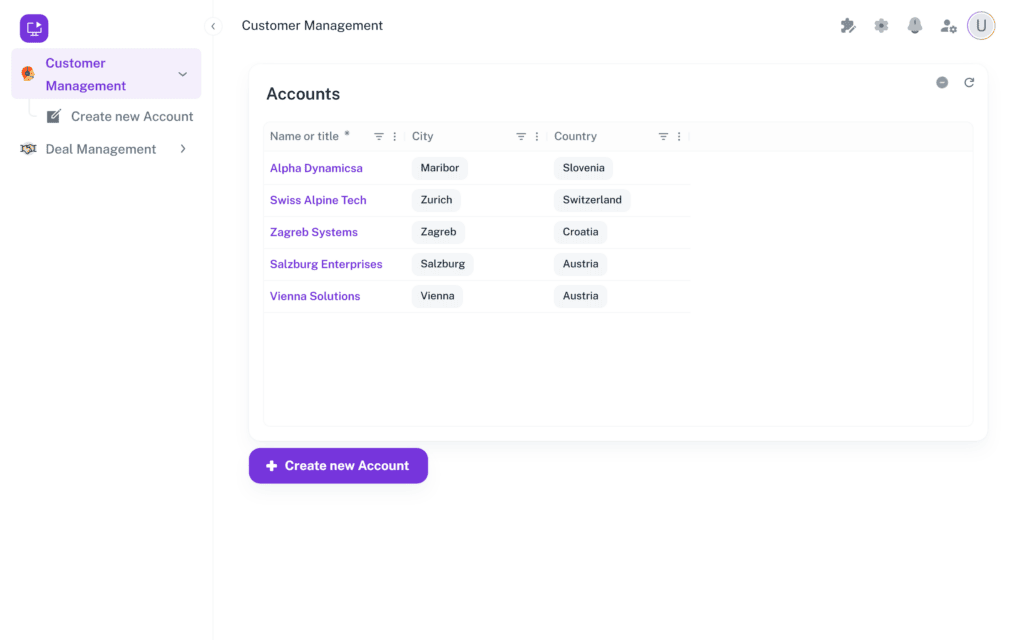
The controls in the top-right corner are, from left to right:
Enable layout edit mode #
Available to administrators. Layout edit mode is how an application is built. While it is on, you can add pages, add widgets, move and resize them, and open their settings. While it is off, you see the application exactly as your users do.
The tooltip on the icon tells you which state you are in: Enable layout edit mode or Disable layout edit mode.
See Widgets for detailed instructions on building pages in layout edit mode.
Application settings #
Available to administrators. This is where the application itself is configured, in six areas:
- General — the application name, description, icon, and colour.
- Connections — the external systems this application reads from and writes to.
- Datasets — the information the application works with.
- Workflows — the states objects move through.
- Permissions — who can see and manage the application and its contents.
- Wizards — not yet available.
Notifications #
Available to every user. The bell icon shows a badge with the number of unread notifications. Opening it shows an All and an Unread tab, and lets you mark everything as read or clear the list.
Notifications also appear as badges on the application cards on the homepage, so you can see which application needs attention before opening it.
User settings in an application #
The same personal appearance and locale settings described under the tenant homepage. They are available inside an application as well, and changing them here changes them everywhere.
Switch between applications #
There is no application switcher in the top bar. To move to another application, select your avatar to open the user menu. It shows the application you are currently in, your pinned applications, and an All applications link back to the homepage. The pinned applications and the link are shown only when your account can open more than one application, or you are a tenant administrator.
Your available options depend on permissions #
Not every user will see every control described above.
For example:
- regular users may only be able to open and use an application;
- application administrators may be able to enable layout edit mode and manage datasets, connections, workflows, and permissions within their application;
- tenant administrators may also be able to manage tenant-level users and settings;
- read-only users can view applications but cannot change data or layouts.
If an option is not visible, your account may not have permission to access it.
