
Users are the accounts that sign in to Auclio. Groups are how those accounts are referred to in permission rules.
Understanding users and groups #
Every person who uses Auclio has a user account in the tenant. The account carries their sign-in address, their name, and one or more roles.
Roles decide what a person can do with Auclio itself:
- Admin — the tenant administrator. Can create and configure applications anywhere in the tenant.
- User — can open the applications they have been given access to, and can view, create, and edit objects where permissions allow.
- Readonly User — can open applications and view information, but cannot change data and cannot edit layouts.
Alongside these three there is one administrator role per application, listed under Application roles and named after the application it belongs to. It is a separate role from Admin: it grants administrator rights inside that one application, and nothing outside it. Someone can therefore administer one application while being an ordinary User everywhere else.
A user must always keep at least one role, and at least one of Admin, User, and Readonly User.
Roles are not the same thing as permissions. A role decides whether someone can build applications; a permission rule decides which applications, pages, and objects they can see. Most access is granted with permission rules, not with roles.
Groups are bundles of users. Permission rules can name a group instead of listing people individually, so that adding someone to the group grants them everything the group has. There are four kinds of group, described below.
Users and groups are managed in tenant settings, by a tenant administrator. Open the settings icon on the tenant homepage, then open Users or Permissions.
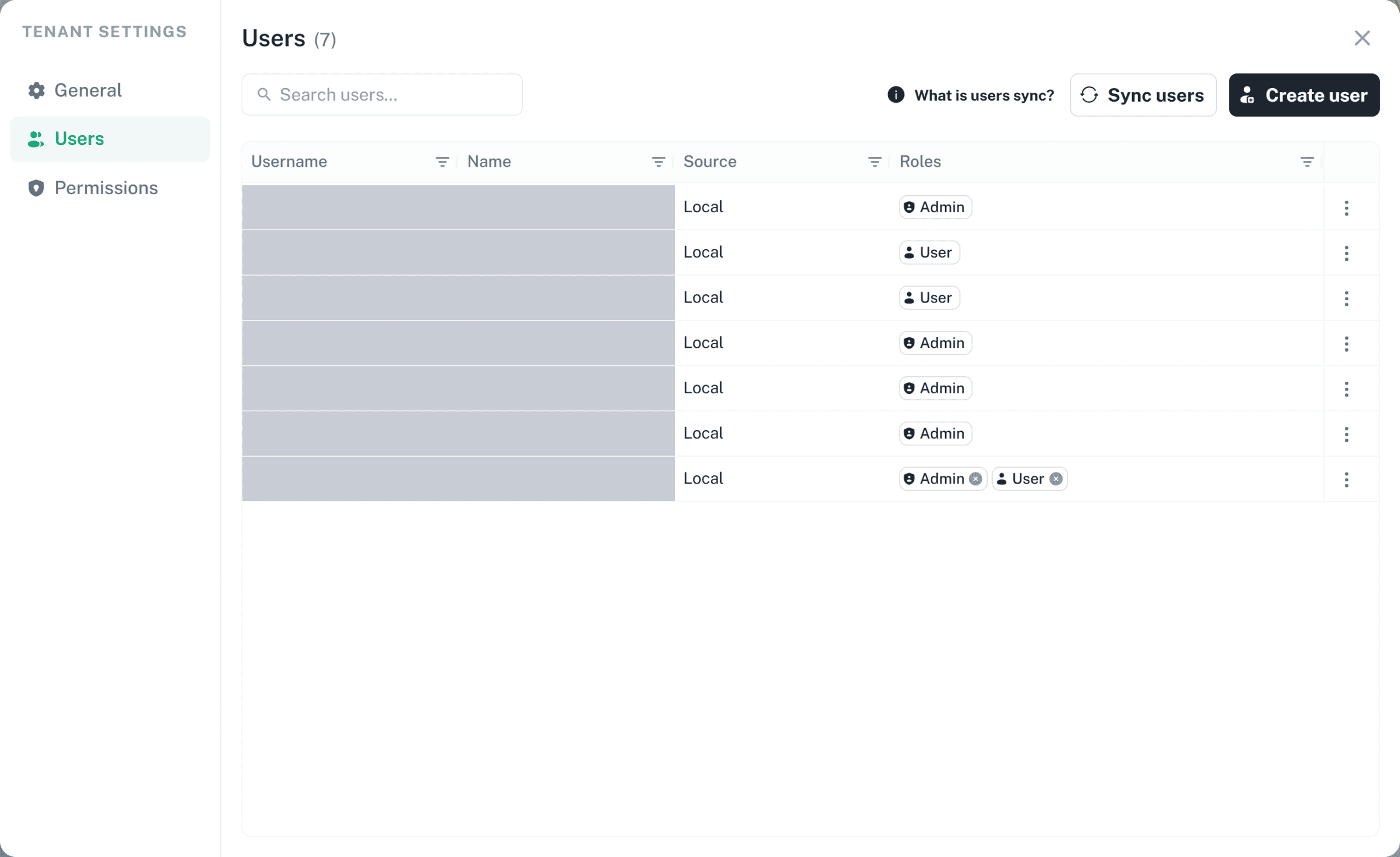
Add a user #
There are two ways a user account comes into existence, and which one applies depends on how your tenant is set up.
If your organization signs in with Auclio accounts, an administrator creates each account.
To add a user:
- Open tenant settings.
- Open Users.
- Select Create user.
- Enter the person’s email address in Username (e-mail).
- Enter their First name and Last name.
- Enter an initial Password.
- Switch on Require password change on first login.
- Select the roles the account should have in Roles. At least one is required.
- Select Create.
The new account can sign in immediately. Requiring a password change means they set their own password the first time.
If your organization signs in through its own directory, accounts are not created here. They appear in Auclio automatically once the person has been given an Auclio role in your identity server. See Work with federated users below.
Your subscription sets a maximum number of users. When that limit is reached, Create user is disabled and the tooltip shows how many accounts are in use.
Edit a user #
To edit a user:
- Open tenant settings.
- Open Users.
- Select the three-dot menu on the user’s row.
- Select Edit user.
- Change the First name or Last name.
- Select Save.
The username cannot be changed, because it identifies the account.
To change roles, use the role chips in the Roles column directly. Select the plus icon to add a role, and the cross on a chip to remove one. The menu groups the choices under General roles and Application roles.
A chip offers no cross when removing it would leave the account with no role at all, or with none of Admin, User, and Readonly User. That rule is applied by the interface rather than by the server, so it protects you from the mistake in Auclio but does not prevent the same change being made directly in your identity server.
To reset a password, select Change password on the same menu. You can set the new password as temporary, which forces the user to choose their own at the next sign-in.
Remove a user’s access #
Auclio does not have a deactivate or disable command. There are two ways to end someone’s access, and they differ in whether the account survives.
Remove their roles. A user with no Auclio role can no longer use Auclio, and their record is removed from Auclio at the next synchronization. Their account still exists in your identity server, so access can be restored by granting the role again. Use this when someone changes teams, or is away for a long period.
Delete the user. This removes the account entirely, and cannot be undone.
To delete a user:
- Open tenant settings.
- Open Users.
- Select the three-dot menu on the user’s row.
- Select Delete user.
- Confirm the deletion.
You cannot delete your own account, and you cannot delete a federated user from Auclio.
Deleting a user does not delete the objects they created. It does, however, remove them from any manual group and from any permission rule that named them individually, which is one reason to grant access to groups rather than to people.
Synchronize users #
Auclio keeps its user list in step with the identity server behind your tenant. The synchronization adds users who are missing, updates existing ones, and removes any who no longer have an Auclio role.
It runs automatically on a schedule. You can also run it yourself:
- Sync users on the toolbar reconciles the whole list. It runs in the background.
- Sync user on a row applies the same logic to one account immediately.
Run it manually when you have just changed someone’s roles in the identity server and want the change reflected in Auclio straight away.
Work with federated users #
A federated user is an account that comes from your organization’s own directory rather than from Auclio. The Source column shows where each account comes from — Local for accounts created in Auclio, and the provider’s name for federated ones.
Federated accounts are read-only in Auclio. Their names, passwords, and existence are owned by the directory, so Edit user, Change password, and Delete user are all disabled with an explanation.
What you can still do in Auclio is assign and remove roles, and add the user to groups.
To stop a federated user from using Auclio, remove their Auclio roles. Removing them from the directory removes them from Auclio at the next synchronization.
Auclio does not have a separate guest or external user type. Everyone who signs in is a user account, and what an external collaborator can see is controlled with permission rules rather than with a different kind of account.
Understanding group types #
Groups are managed in the User groups tab, inside Permissions. There are four types.
Built-in groups are created and maintained by Auclio. The one you will use most is All users, which contains every user in the tenant. Built-in groups cannot be edited or deleted.
Manual groups have an explicit list of members that you maintain. Use them for teams and roles that do not exist anywhere else, such as “Invoice approvers”.
Property-based groups work out their members from the data. You name a dataset and a property, and whoever is named in that property becomes a member. Use them when membership follows the data, such as “the owner of each project”. Property-based groups exist inside an application, because they depend on that application’s datasets.
Keycloak groups take their members from groups in your identity server. Use them when your organization already maintains the right grouping in its directory, so that Auclio follows it rather than duplicating it.
Groups can be created for the whole tenant or for one application. A tenant-wide group is available in every application, and only a tenant administrator can create one. A group created inside an application is available there only.
Create a group #
To create a group:
- Open tenant settings or application settings.
- Open Permissions.
- Open the User groups tab.
- Select Create user group.
- Choose the Type.
- Enter a Name and a Description.
- Complete the settings for the type you chose.
- Select Create.
The type cannot be changed after the group has been created. Built-in is not offered, because built-in groups are created by Auclio. Property-based is offered only in application settings, because it needs a dataset to point at.
For a Manual group, add the members in the Members field.
For a Property-based group, select the Dataset, name the Property whose value identifies the members, and optionally list object identifiers in Filter (object ids) to limit the group to specific objects. Leaving the filter empty considers every object in the dataset.
For a Keycloak group, enter one or more group paths from your identity server in Keycloak group paths, pressing Enter after each one.
Add users to a group #
For a manual group:
- Open Permissions and the User groups tab.
- Select the three-dot menu on the group.
- Select Edit.
- Add the users in the Members field.
- Select Save.
For property-based and Keycloak groups you do not add members directly. Membership follows the data or the directory, so change the property value, or the identity server group, instead.
Select Members on the group’s menu to see who is currently in it. This opens the group with its Members tab in front. The list is calculated from the group’s saved configuration, so save your changes before checking. A member who is named by the configuration but has no Auclio account yet is marked Not created in Auclio, and the group grants that person nothing until the account exists.
Edit, Members, and Delete are all unavailable for built-in groups, so the membership of All users cannot be listed from this menu.
Remove users from a group #
For a manual group, edit the group and remove the member chip, then save.
For a property-based group, change the value of the property that put them there.
For a Keycloak group, remove them from the corresponding group in your identity server.
Removing someone from a group removes every permission that group granted them. Check what the group is used for before emptying it.
Delete a group #
To delete a group:
- Open Permissions and the User groups tab.
- Select the three-dot menu on the group.
- Select Delete.
- Confirm the deletion.
Built-in groups cannot be deleted.
Deleting a group removes it from every access list that referenced it, which removes the access those lists granted. Check where a group is used before deleting it, and prefer emptying a group over deleting it if you may need it again.
User and group recommendations #
When managing users and groups:
- grant access to groups rather than to individual people, so that access survives staff changes;
- use the built-in All users group for things everybody should see;
- create a manual group per business role, not per person;
- use property-based groups where the data already records who is responsible;
- use identity server groups where your directory already maintains the grouping;
- give groups names that explain what they are for, not who is currently in them;
- give administrator roles sparingly, because administrators bypass permission checks;
- review the user list periodically and remove roles from people who have left.
