
Applications are the main containers for the business solutions you build in Auclio.
Understanding applications #
Each application brings together pages, widgets, datasets, connections, workflows, and permissions for a specific process or use case. For example, you can create applications for customer management, project tracking, requests, approvals, health and safety, or expense management.
Users are granted access to one application at a time, and an administrator can be granted access to a single application rather than the whole tenant.
Because of that boundary, the first decision to make is how much one application should cover. Keep an application to one process and the people who run it. Splitting a process across two applications means duplicating datasets; combining two unrelated processes may also not be the best decision.
Create a new application #
Creating applications requires administrator permissions.
From the tenant homepage, select New application. You can start in three ways:
- Blank application
- Create with AI
- Import
Create a blank application #
Start blank when you know what you want to build, or when you want full control over the structure from the beginning.
To create a blank application:
- Select New application.
- Choose Blank application.
- Enter a clear application name.
- Add a short description.
- Choose an icon, or upload an image.
- Select a colour preset.
- Select Create.
Auclio creates an empty application that you can configure based on your business process.
Create an application with AI #
Start with AI when you want a working first version quickly, or when you are not yet sure how to structure the datasets and pages.
To create an application with AI:
- Select New application.
- Choose Create with AI.
- Choose Describe it to write a single description, or Step by step to answer a short series of questions.
- Enter a clear description of the application you need.
- Select Generate.
- Review the datasets, pages, and widgets Auclio proposes.
- Select Create application.
- Review the generated application in layout edit mode.
If you choose Step by step, Auclio asks for the application name and description, where the data should live, and what pages you want, then shows a Review step summarising your answers before you select Generate. Choosing Local stores the objects in Auclio. Choosing M-Files asks for the Vault GUID of the vault to connect to, and skips generation. Create application then creates the application and its connection at once, and the datasets and pages appear only once the M-Files adapter is installed in the vault and has synchronised the vault structure. For pages, Standard pages builds a list page and a details page for each dataset without using AI, and Describe with AI lets you describe the pages you want in your own words.
Generation takes a while, and it reports the stage it has reached rather than a percentage, because the work is a sequence of steps rather than a measurable quantity. You do not have to watch it: minimise the dialog — its control reads Keep working — this carries on in the background — and the generation continues in the background task tray while you do something else. Reopen it from the tray when it finishes.
A useful description names the objects, the properties, and what users should be able to do:
Create a simple CRM application for managing accounts and contacts. Users should be able to view all accounts, add new accounts, and open an account details page. Each account should include the account name, owner, country, industry, number of employees, annual revenue, and customer status.
The generated application is a starting point. You should review all pages, datasets, properties, permissions, and workflows before using it with real business data.
See AI Assistant for detailed instructions on reviewing and changing the plan, retrying a step that failed, and the AI credits that generation spends.
Import an application #
Import brings in an application that was exported from another Auclio tenant. Use it to:
- move an application from a test tenant to a production tenant;
- reuse a solution built for one organization in another;
- restore a structure you exported before making significant changes;
- copy an existing application as the starting point for a new one.
To import an application:
- Select New application.
- Choose Import.
- Upload the export file and select Next.
- Choose a Target application, or Create new application to import into a new one.
- Map each M-Files connection in the file to a connection in this tenant with Map to, further down the same step. This section appears only when the file contains M-Files connections.
- Select the items you want to import.
- Review the summary and select Import.
- Review the import results.
After importing, check:
- that every dataset points at the correct connection;
- that permission rules reference groups that exist in this tenant;
- that user assignments are still correct;
- that workflows and their states arrived intact;
- that pages and widgets display the data you expect;
- that any environment-specific values, such as vault identifiers or URLs, have been updated.
An import file carries structure, not business data. Objects are not exported, so a newly imported application starts empty.
Open an application #
Select the application card on the tenant homepage. Auclio opens the application’s home page.
If your account can open only one application and you are not an administrator, Auclio opens it automatically when you sign in.
Application settings #
Open an application and select the settings icon in the top-right corner. Application settings has six areas:
- General — name, description, icon, and colour.
- Connections — the systems this application reads from and writes to.
- Datasets — the information the application works with.
- Workflows — the states objects move through.
- Permissions — who can see and manage the application and its contents.
- Wizards — not yet available.
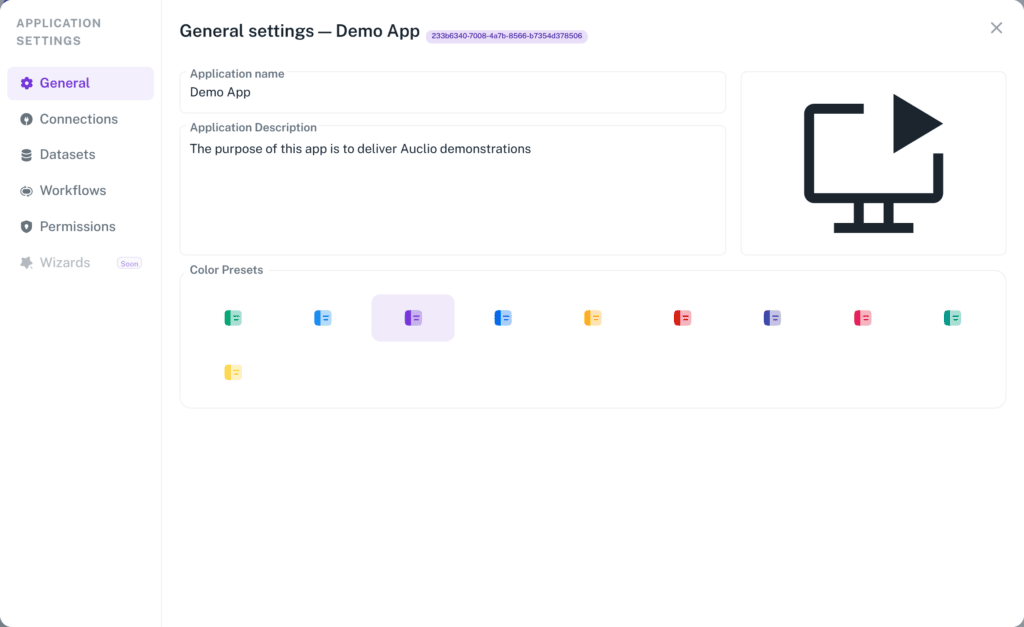
Rename an application #
To rename an application:
- Open the application.
- Open Application settings.
- Open General.
- Change Application name.
- Select Save Changes.
Administrators can also rename an application from the tenant homepage. Select the three-dot menu on its card and select Edit.
Renaming changes the label only. Pages, datasets, permissions, and links continue to work.
Change the application icon #
To change the icon:
- Open Application settings.
- Open General.
- Select the icon tile.
- Choose an icon from the library, or upload an image.
- Select Confirm.
- Select Save Changes.
The colour presets on the same page set the application’s accent colour. The new colour is applied after the page is refreshed.
Reuse an application #
Auclio does not have a duplicate command for applications. To reuse one, export it and import the file back.
To reuse an application:
- Export the application you want to copy.
- Select New application.
- Choose Import.
- Upload the exported file.
- Choose Create new application as the target, and complete the import.
- Rename the new application and adjust anything that should differ.
The copy contains the structure, not the objects. If the original application uses an external connection, map the copy to the correct connection during the import.
Export an application structure #
Exporting captures the configuration of an application so it can be imported elsewhere. Only administrators can export, and only administrators can import. The restriction is enforced by the server, not merely by hiding the menu item.
To export an application:
- Open the tenant homepage.
- Select the three-dot menu on the application card.
- Select Export.
- Choose Export everything, or choose Export selected and mark the resources to include.
- Select Next.
- Review the summary and select Start Export.
- Download the file from the notification Auclio sends when the bundle is ready.
You can choose which datasets, pages, widgets, workflows, user groups, access lists, permission rules, and templates to include. Connections and M-Files workflows are always included, because nothing else in the file makes sense without them.
An export is queued and prepared in the background, so it may take a moment before the file is available.
Exports contain structure only. To take object data out of Auclio, export it from a Table widget instead — right-click the table and select Export. See Manage objects for detailed instructions.
Delete an application #
Deleting an application removes its pages, widgets, datasets, the objects those datasets hold, its connections, and its permission rules. It cannot be undone.
To delete an application:
- Open the tenant homepage.
- Select the three-dot menu on the application card.
- Select Delete.
- Confirm the deletion.
Export the application first if there is any chance you will want its structure again.
Order applications on the homepage #
Applications cannot be dragged into a custom order on the homepage. Two controls decide what you see first.
Pin to quick access moves an application to the front of the list and adds it to your user menu. Select the three-dot menu on a card and select Pin to quick access, or Unpin to remove it. Pinning applies to your account only.
The sort control, which is labelled with whichever option is active, orders everything that is not pinned:
- Name A-Z
- Name Z-A
- Newest first
- Oldest first
Use the search field to filter the list by name, and the grid and list icons to switch between the two layouts.
Application management recommendations #
When managing applications:
- keep one application per business process;
- give applications names your users would recognize, not internal project names;
- use the description to record what the application is for and who owns it;
- export an application before making structural changes;
- review a generated or imported application in full before giving users access;
- check permissions with a non-administrator account, because administrators bypass permission checks;
- delete unused applications rather than leaving them visible, and export them first.
